To change a folder icon in Windows 11 or Windows 10, right-click the folder, open Properties, go to Customize, click Change Icon, and choose an ICO file. If you want to use PNG or JPG images, apply colors, or customize many folders faster, FolderIco can handle the conversion and repetitive setup for you.
Custom folder icons make Windows easier to navigate. Instead of scanning folder names one by one, you can mark projects, clients, priorities, file types, or personal folders with visual labels that are easy to recognize at a glance.
Method 1: Change a folder icon with Windows Properties
Windows includes a built-in option for changing a folder icon. It works in both Windows 11 and Windows 10, but it requires an icon file in ICO format if you want to use your own image.
- Right-click the folder you want to customize and select Properties.
- Open the Customize tab.
- Click Change Icon.
- Select one of the built-in Windows icons or click Browse to choose your own ICO file.
- Click OK, then Apply to save the new folder icon.
Limitations of the built-in Windows method
The default Windows dialog expects you to already have a suitable icon file. In most cases, that means finding an ICO file first or converting a PNG, JPG, or other image into the ICO format before Windows can use it as a folder icon.
There is another visual problem: a regular picture does not always look like a folder. If you use a photo, logo, or flat image directly, the folder may lose its familiar folder shape and become harder to recognize in File Explorer. A good custom folder icon should stay clear, sharp, and folder-like at different sizes.
- You need to find or create an ICO file before changing the folder icon.
- PNG and JPG images usually require manual conversion.
- Each folder must be changed through Properties one by one.
- Random images can make the folder stop looking like a folder.
- Downloaded icon files or copied desktop.ini files may be treated as untrusted by recent Windows 11 security updates.
New Windows 11 security limits for downloaded folder icons
Downloaded folder icons can come as a single ICO file, a PNG or JPG image, an archive, or ready-made folder settings that depend on a desktop.ini file. After the June 2026 Windows 11 security update, Windows applies stricter trust checks to folder customizations that come from outside the local computer.
This mainly affects manual workflows: downloaded icon files, copied desktop.ini files, content from some network or WebDAV locations, and files marked with Mark of the Web. The folder still opens normally, but Windows may ignore the copied customization because it does not trust the source.
Can you use PNG or JPG as a folder icon in Windows?
Windows normally expects custom folder icons to use the ICO format. PNG, JPG, photos, and logos usually need to be converted before the built-in folder icon dialog can use them.
FolderIco can handle image conversion automatically and keep the result closer to a folder-style icon, so your folders remain recognizable in different File Explorer views.
Method 2: Change folder icons from the right-click menu
FolderIco adds folder customization directly to the Windows context menu. You can right-click a folder, choose a new icon or color, and apply the change without opening Properties, searching for ICO files, manually converting images, or repeating the same steps for every folder.
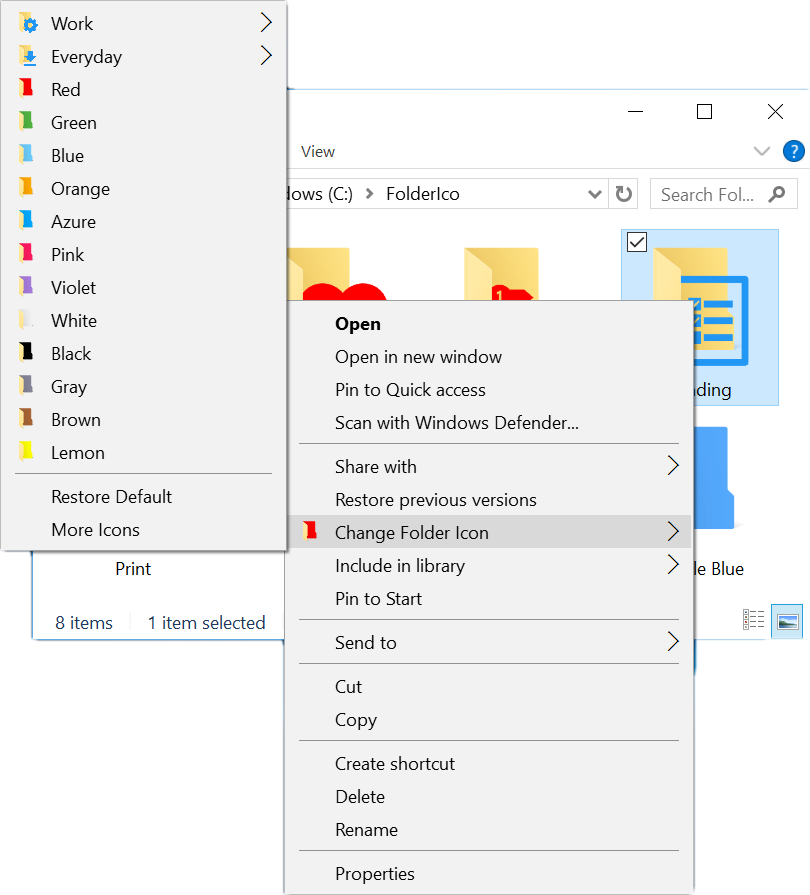
Right-click a folder, choose a style, and apply a new icon in seconds.
This is especially useful when you want to organize work folders, client projects, photo collections, downloads, archives, or frequently used directories. FolderIco helps keep folders visually consistent while reducing the time spent on repetitive customization.

Change folder colors in Windows
Windows does not include a native folder color changer. FolderIco adds this missing option, so you can color-code folders by priority, project status, category, department, or file type.
For example, you can mark urgent folders in one color, completed projects in another, and personal files with a separate style. This makes important folders easier to find without changing your folder structure.

Windows default method vs FolderIco
The built-in Windows method is useful for occasional customization. FolderIco is designed for users who want to change folder icons often, use folder colors, or organize many folders visually.
| Feature | Windows default | FolderIco Faster |
|---|---|---|
| Change folder icon | Several manual steps | Right-click menu |
| Change folder colors | Not supported | Built-in color options |
| Use PNG/JPG images | Requires conversion to ICO | Automatic handling |
| Keep a folder-like look | Depends on the image you prepare | Folder-style icons and colors |
| Customize many folders | Slow and repetitive | Fast batch-friendly workflow |
| Visual organization | Basic icon selection | Icons, colors, and libraries |
If you only need to change one folder icon, the default Windows method may be enough. If you want a faster and more visual way to organize folders, FolderIco removes most of the manual work.
How custom folder icons work in Windows
Windows stores custom folder icon settings in a hidden desktop.ini file inside the folder. This file tells Windows which icon to display, while folder attributes help Windows recognize that the folder has custom settings.
When you change a folder icon, Windows usually needs to:
- Create or update the hidden desktop.ini file.
- Set the folder attribute used for custom folder settings.
- Load the selected icon file or icon library.
- Refresh the icon cache so the new icon appears in File Explorer.
This explains why folder icons sometimes reset or fail to update. If the icon file is moved, the desktop.ini file is removed, or the icon cache is outdated, Windows may show the default yellow folder again.
A folder icon tool can handle these technical details automatically, which is useful when you customize many folders or move folders between locations. FolderIco also includes repair options for common cases where Windows does not refresh or preserve custom folder icons correctly.
If a folder icon disappeared after the June 2026 Windows 11 security update, the cause may be an untrusted desktop.ini file rather than a missing icon. Reapplying the icon locally with FolderIco creates fresh folder icon settings from a trusted local workflow. The Repair Folder Icons tool is intended for icons that were previously assigned with FolderIco.
Common problems when changing folder icons
If your folder icon is not changing, looks blurry, or resets after restart, the issue is usually related to icon cache, missing icon files, or folder settings.
Folder icon not changing
Refresh File Explorer first. If the icon still does not update, restart Windows Explorer or clear the Windows icon cache. Also make sure the icon file has not been moved, renamed, or deleted.
Folder icon resets after restart
Custom icons may reset if Windows cannot find the icon file or if the folder's desktop.ini settings are not preserved. This can also happen with cloud storage services if they do not sync hidden files or folder attributes correctly.
FolderIco can repair and restore folder icon settings, making custom icons more reliable across everyday use.
Custom icon looks blurry or low quality
Windows uses different icon sizes depending on the folder view. If the icon file does not include a large version, it may look pixelated in large icon mode.
For best results, use icons that include a 256x256 size. This helps the folder icon stay sharp in different File Explorer views.
Too many folders to customize manually
If you need to customize many folders, the built-in Windows process quickly becomes repetitive. FolderIco speeds up the workflow by letting you apply icons and colors directly from the right-click menu.
Frequently asked questions
Quick answers about changing folder icons and folder colors in Windows.
Right-click the folder, open Properties, go to the Customize tab, and click Change Icon. Then choose a built-in Windows icon or browse to your own ICO file.
This method works in both Windows 11 and Windows 10, but it is slow if you need to repeat it for many folders.
Windows expects a suitable icon file, usually in ICO format. If you have a PNG, JPG, logo, or photo, you normally need to convert it before using it as a folder icon.
A regular image can also make the folder lose its familiar folder appearance. Good folder icons should remain folder-like, clear, and readable at different sizes.
The quickest way is to use FolderIco because it integrates with File Explorer and lets you apply icons and colors from the context menu.
This removes the need to open multiple settings windows, search for ICO files, or convert images manually for each folder.
Windows can apply stricter trust checks to downloaded icon files, copied desktop.ini files, WebDAV locations, network paths, or files marked with Mark of the Web.
Applying the icon locally with FolderIco avoids copying pre-made folder settings from an untrusted source. If you use Repair Folder Icons, remember that it works for icons previously assigned with FolderIco.
Windows folder icons normally require ICO files, so PNG and JPG images must be converted before they can be used as folder icons.
FolderIco can handle this automatically and helps keep the result looking like a proper folder icon instead of a random picture pasted onto a folder.
File Explorer may still be showing a cached version of the old icon. Refresh the folder, restart Windows Explorer, or clear the icon cache.
Also check that the icon file still exists and that custom folder settings were not removed.
Windows does not provide a built-in option to change folder colors.
FolderIco adds folder color customization, making it easy to color-code folders by project, priority, status, or category.
Custom folder icons usually do not noticeably slow down a PC. Windows caches icons and displays them efficiently.
For the best result, use optimized icons that include the correct icon sizes.
Assign different icons and colors to folders based on projects, file types, priorities, or workflow stages.
Visual organization makes important folders easier to find and reduces the time spent searching through File Explorer.