Default Windows folder icons are clean, but they are not always easy to tell apart. When dozens of folders use the same default icon, you have to read names one by one instead of recognizing the folder visually.
A custom folder preview solves this by turning an image into a folder cover. With FolderIco, you can use a photo, logo, screenshot, album cover, or any other picture as a preview-style folder icon in Windows Explorer. It works well for organizing folders on Windows 11, Windows 10, and other supported Windows versions.
This guide focuses on Windows in general, including Windows 11 and Windows 10. The goal is the same on both systems: replace look-alike folders with clear visual folder thumbnails and covers.
Why folder previews are useful in Windows
Default Windows folder icons give you limited visual context. For photo libraries, work projects, downloads, design assets, and client folders, a preview image helps you understand what is inside before opening the folder.
Create folder previews with image covers
FolderIco lets you create a folder preview by applying an image directly to the folder icon. You do not need to edit system files or search through advanced Windows settings.

Image-based folder covers help important Windows folders stand out immediately.
This works especially well for photo folders, project folders, design files, media libraries, invoices, downloads, and any folder you open often.
How to create a folder preview in Windows
Once FolderIco is installed, you can create a custom folder preview in a few clicks from the Windows right-click menu.
- Right-click the folder you want to customize.
- Select Change Folder Icon - More Icons.
- In the FolderIco window, open the Custom category.
- Click Image and choose a built-in picture or browse for your own image.
- Click Change Icon to apply the preview-style folder cover.
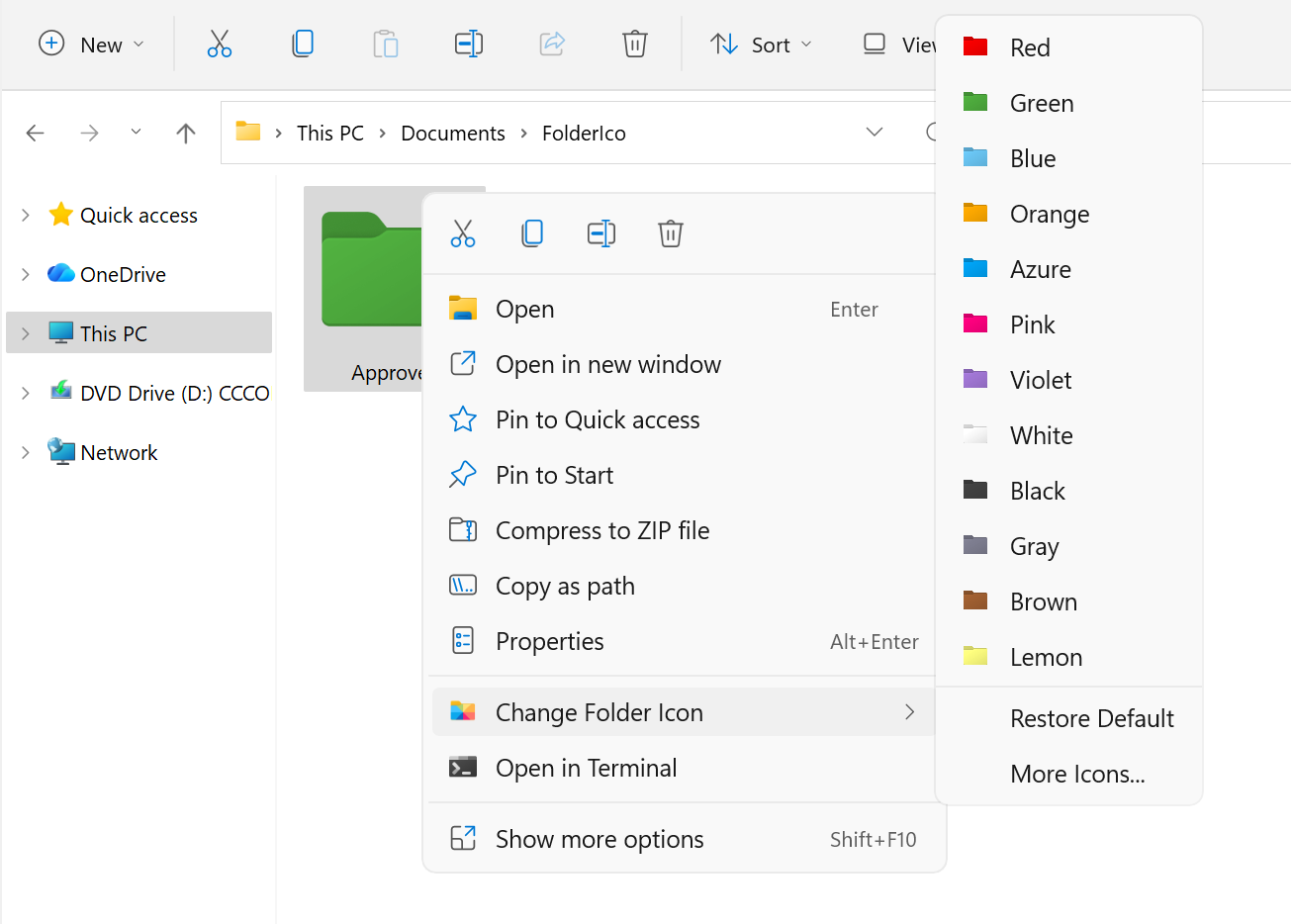
FolderIco applies the selected image as a preview-style folder cover, making the folder easier to spot in Explorer, on the desktop, and inside large directories.
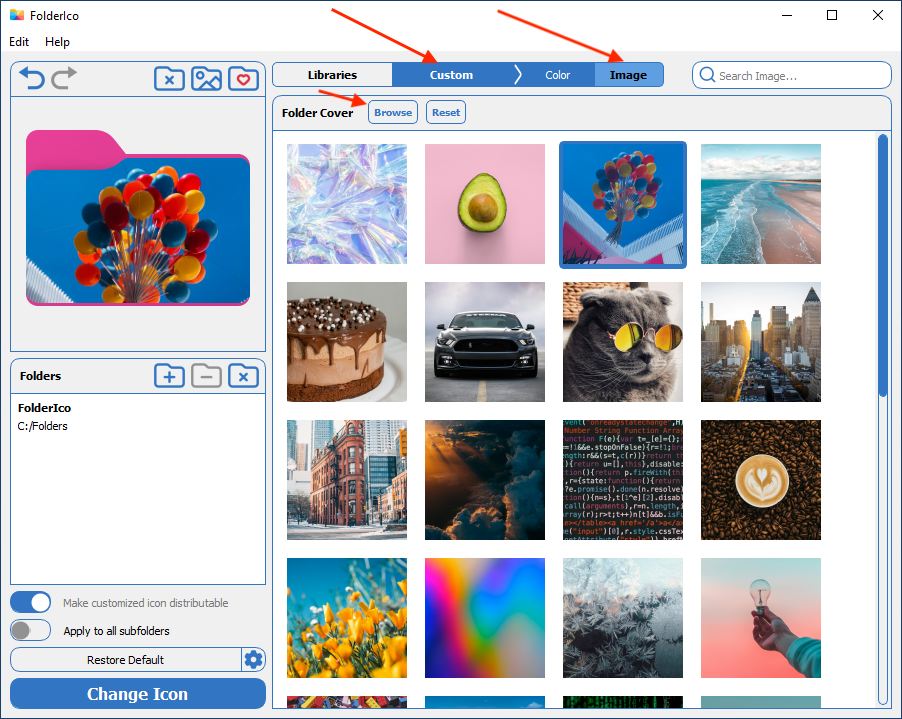
You can repeat the same process for any important folder and build a more visual Windows file system without complicated manual icon editing.
Windows folder thumbnails vs FolderIco folder previews
Windows keeps folder icons visually simple. FolderIco gives you more control by letting you turn meaningful images into recognizable folder previews.
| Feature | Windows default | FolderIco Best |
|---|---|---|
| Visual folder recognition | Limited | Clear preview-style covers |
| Use your own images | Not practical | Built-in support |
| Create unique folder look | Minimal options | Images, colors, stickers |
| Apply from Explorer | No | Right-click, instant |
If you want folders to be easier to scan and recognize, image-based previews are one of the fastest ways to improve file organization in Windows.
Best use cases for folder previews
Folder previews work best when the image clearly represents the contents or purpose of the folder.
- Use project logos for work folders
- Use product images for catalog or inventory folders
- Use photo thumbnails for image collections
- Use cover art for music, video, or media folders
A visual folder system reduces searching time and makes large collections easier to manage, especially when folder names are similar.
Common questions about Windows folder previews
Here are a few practical points to keep in mind when creating preview-style folder icons in Windows.
Can I use my own image?
Yes. FolderIco lets you browse for your own image and use it as a folder cover, including photos, logos, screenshots, or artwork.
Is this better than renaming folders?
Folder names are still useful, but previews add instant visual recognition. This is especially helpful when many folders have similar names or belong to the same project.
Can I create previews for many folders?
Yes. Because FolderIco works from the right-click menu, you can customize multiple folders much faster than with manual Windows icon settings.
Frequently asked questions
Still have questions? Here are quick answers.
Right-click the folder, choose Change Folder Icon - More Icons, open the Custom category, click Image, and apply the picture as the folder cover.
Not in a very useful way. Many folders still look almost identical, which is why custom folder covers can make navigation much easier.
Yes. You can choose your own image and use it as a folder cover to create a personalized preview-style icon.
Folder previews make folders easier to recognize instantly, reduce visual clutter, and help you organize files more efficiently.
Yes. FolderIco also supports colors, stickers, and other icon styles, so you can build a more visual folder system.