Custom folder icons make Finder easier to scan. Instead of opening folders one by one, you can mark work projects, personal files, archives, photos, and priority folders with visual labels that are easy to recognize at a glance.
In this guide, you will see why the standard macOS method is not ideal for everyday folder customization, and how FolderIco gives you a faster way to change icons and folder colors in fewer steps.
The standard macOS method: works, but has drawbacks
macOS includes a built-in way to replace a folder icon, but it is a manual workaround rather than a convenient customization workflow. Before you start, you need to find a suitable image, prepare it at a good size, open it, copy it, and then paste it into the folder's information panel.
- Choose the image or icon you want to use. For the sharpest result, use a high-resolution square image, such as a 1024 x 1024 PNG.
- Open the image in Preview.
- Press Command + C to copy the image.
- Right-click the folder you want to customize and select Get Info.
- In the Get Info window, click the small folder icon in the top-left corner.
- Press Command + V to paste the new image as the folder icon.
- Check the result in Finder. In many cases, the folder no longer looks like a standard macOS folder - it simply displays the image you pasted.
This method changes the folder, but it does not give you a ready-made folder styling system. The final result depends entirely on the picture you chose. If the image is not prepared as a folder-style icon, the folder can look like a plain pasted picture instead of a recognizable macOS folder.
Change folder icons faster with FolderIco for Mac
FolderIco simplifies folder customization by replacing the manual copy-and-paste workflow with a faster visual interface. You can choose an icon, apply a folder color, or use your own image without repeating the same Finder steps for every folder.
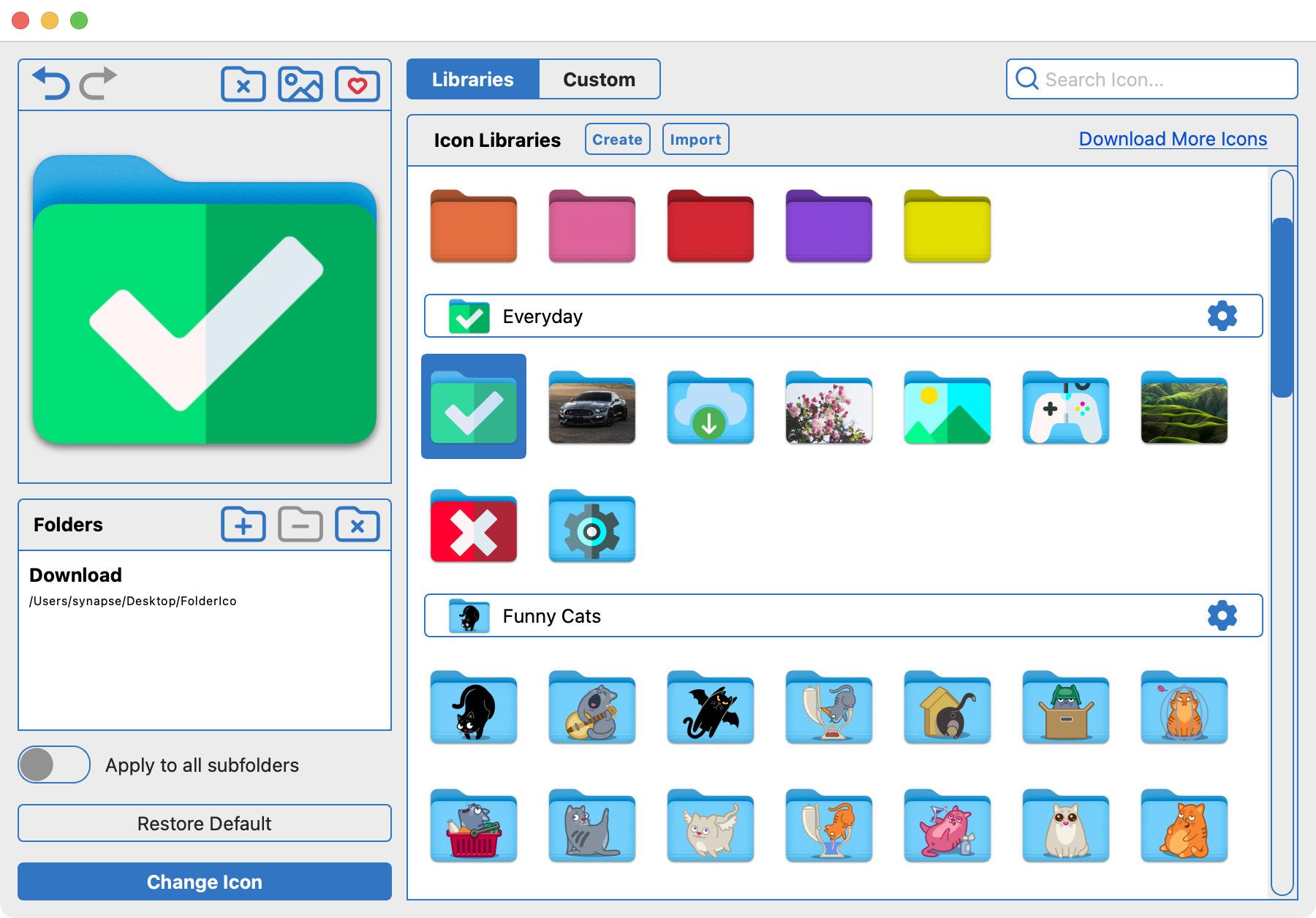
FolderIco helps you customize macOS folders with icons, colors, and your own images in a simpler workflow.
This is especially useful when you organize many folders by project, client, status, file type, or priority. Instead of relying only on folder names, you can create a visual system that is easier to scan.
Standard macOS method vs FolderIco
The built-in macOS method can work for a quick one-off change, but it is easy to end up with inconsistent results: some icons look like photos or flat images instead of real folders. FolderIco is better when you want a faster workflow, ready-to-use icon collections, and consistent folder styling across many folders.
| Feature | Standard macOS method | FolderIco Faster |
|---|---|---|
| Change a folder icon | Manual copy and paste | Apply in a few clicks |
| Built-in icon libraries | Not included | Ready-to-use collections |
| Use custom images | Requires Preview, Get Info, and prepared image | Simple image selection |
| Keep folder-style appearance | Can be lost if the pasted image is not folder-shaped | Designed for folder customization |
| Customize many folders | Slow and repetitive | Designed for repeated use |
| Folder color organization | Not built in | Color and icon options |
If you only need to personalize one folder, Finder is enough. If you want to organize projects, clients, downloads, archives, or work folders visually, FolderIco saves time and keeps your folder system consistent.
Best image size for Mac folder icons
For the best quality, use a clean, square image with enough resolution for large Finder views. A 1024 x 1024 image is a good choice because it stays sharp when macOS displays the folder at larger sizes.
PNG images usually work well for custom icons, especially when the icon has transparent edges. Avoid tiny images because they can look blurry or pixelated after being applied to a folder.
Why the default macOS method is not ideal
You need to prepare the image first
The built-in method starts before Finder: you have to find a suitable image, make sure it is large enough, and ideally prepare it as a folder-style icon. A random photo, screenshot, or small image can make the result look unfinished.
The folder can stop looking like a folder
When you paste an image through Get Info, macOS replaces the folder's visual appearance with that image. If the picture is not designed as a folder icon, the folder may look like a plain pasted image instead of a familiar macOS folder.
Results are inconsistent across folders
Each folder depends on the image you selected and prepared manually. If you use different image sizes, styles, or formats, your folder system can quickly look mixed and inconsistent.
It becomes repetitive when you organize many folders
The standard macOS method requires the same copy-and-paste process for every folder. FolderIco is a better option when you want a faster workflow, ready-made icon collections, and a consistent visual system.
How custom folder icons work on Mac
When you paste a new icon into the Get Info window, macOS attaches the custom icon to that folder and Finder displays it instead of the default blue folder icon. This is why the folder can lose its familiar folder shape and appear as the pasted image instead.
If a folder icon does not appear correctly, the cause is usually one of three things: the image was not copied properly, the wrong icon area was selected in Get Info, or Finder is still showing a cached version of the folder.
When should you use custom folder icons?
Custom icons are most useful when they make your folder system easier to understand. For example, you can use different icons or colors for active projects, completed work, finance documents, design files, family photos, and important archives.
A simple visual system can reduce clutter, help you find important folders faster, and make your Mac desktop or Finder sidebar feel more organized.