Windows cannot assign a PNG or JPG file directly as a folder icon. FolderIco accepts common image formats, prepares the icon, and applies the required folder settings in one workflow.
Can Windows use PNG or JPG directly as a folder icon?
Not directly. Windows only supports ICO files for folder icons, which means normal image files need to be converted before they can be used.
Use any image instantly with FolderIco
FolderIco removes this limitation by letting you load your own image directly and apply it as a folder icon without manual ICO conversion.
Supported image formats include JPG, PNG, WebP, BMP, and TIFF.
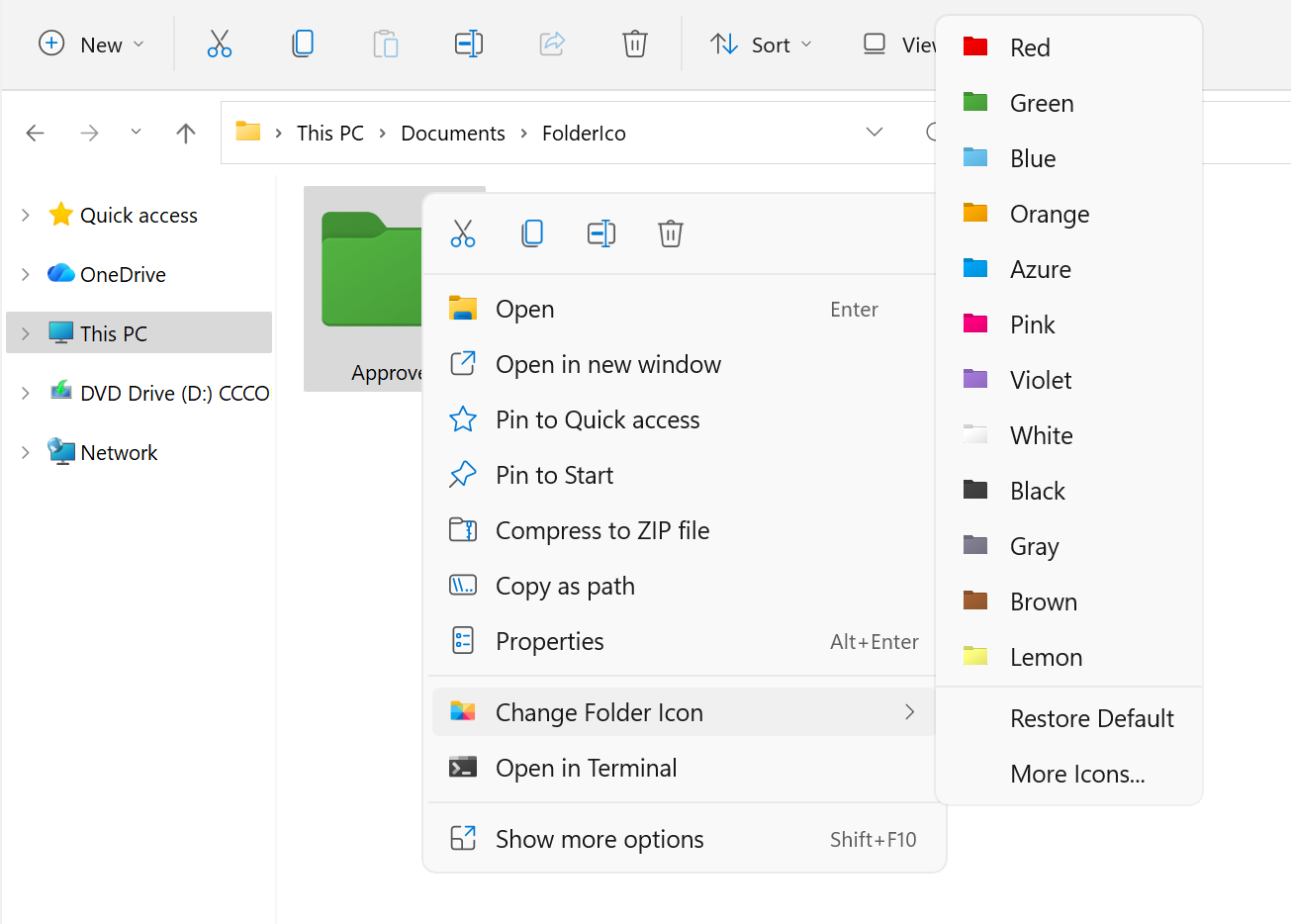
Open FolderIco for the folder you want to customize and access more icon options in seconds.
Step-by-step: use your own image as a folder icon
- Right-click the folder you want to customize.
- Open FolderIco from the context menu.
- Click More Icons to open the icon selection window.
- Choose Load Folder Image.
- Select a supported image file from your computer.
- Apply it instantly as your folder icon.
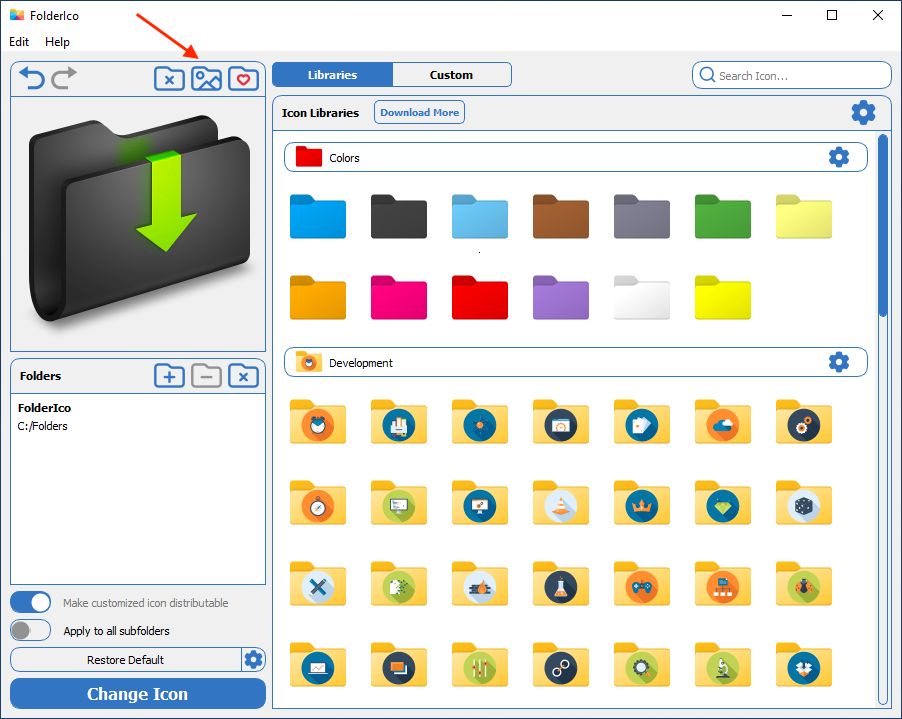
FolderIco loads the image and converts it automatically, so there is no need to create or manage ICO files yourself.
If you want a ready-made style rather than your own image, browse the separate FolderIco icon library.
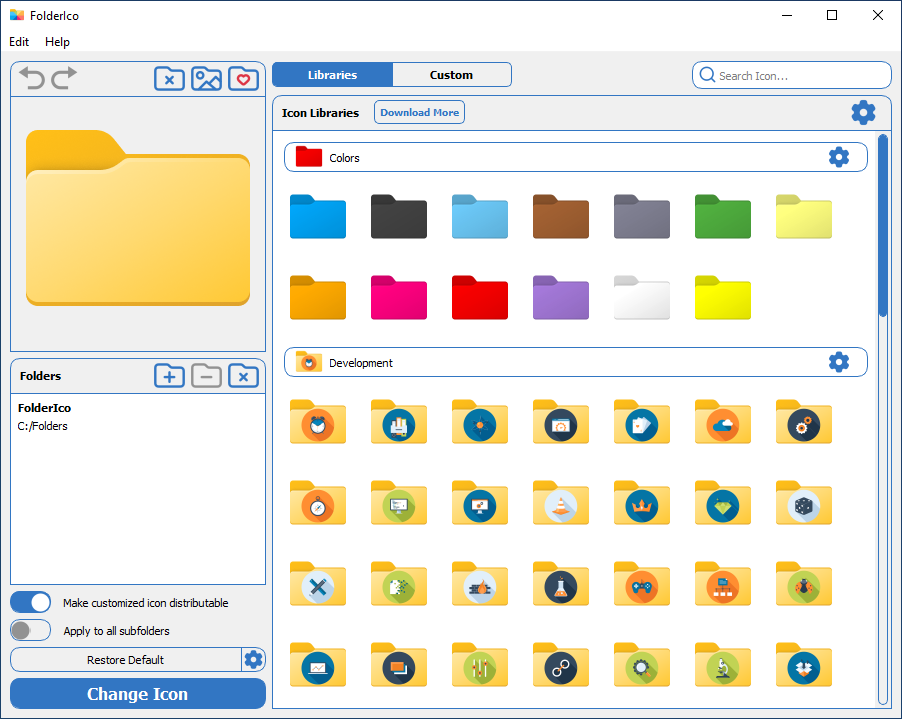
This makes it much easier to personalize folders with logos, thumbnails, project graphics, or any image that helps you identify content faster.
Default Windows method vs FolderIco
The built-in method works only if you already have an ICO file prepared. FolderIco makes the whole process much faster and easier.
| Feature | Windows default | FolderIco Automatic |
|---|---|---|
| Use common image formats | Requires conversion | Automatic handling |
| Apply custom image | Manual setup | Few clicks |
| Customize many folders | Slow and repetitive | Fast and efficient |
| Built-in icon libraries | Limited | Included |
If you only want to change one folder and already have an ICO file, the built-in method can work. But if you want to use normal images directly, FolderIco is much more practical.
Common problems when using an image as a folder icon
Here are the most common issues and what usually causes them.
The folder icon does not change
Refresh the folder or restart Windows Explorer. In some cases, Windows may still be showing the cached icon.
The custom icon resets later
This can happen if the folder settings are not preserved correctly or if the icon source is no longer available.
FolderIco helps preserve these settings automatically and reduces the risk of icon reset problems.
The icon looks blurry or low quality
Folder icons need multiple sizes for best display in different Explorer views. If the icon only works at small sizes, it may look pixelated in large icon mode.
FolderIco prepares images for folder icon use automatically, which helps improve visual consistency.
I want to customize many folders quickly
Doing this manually with Windows is slow because every icon must be prepared separately. FolderIco makes the workflow much faster by integrating directly into Explorer.
Frequently asked questions
Still have questions? Here are quick answers.
Not directly. Windows expects ICO files for folder icons.
FolderIco lets you use JPG, PNG, WebP, BMP, and TIFF images without manual conversion by handling that process automatically.
Open FolderIco for the folder, click More Icons, then choose Load Folder Image and select your image.
The image is prepared automatically and can be applied right away.
The built-in folder customization system in Windows uses the ICO format for icons.
That is why normal image files need conversion before they can be used.
Yes. FolderIco handles image conversion and application automatically.
This saves time and makes it easier to personalize folders using your own graphics.
Windows may still be using the old cached icon.
Try refreshing the folder, restarting Windows Explorer, or checking whether the custom folder settings were saved correctly.
Yes. Using custom images makes folders easier to recognize by category, project, client, or priority.
This helps you navigate faster and reduce time spent searching through folders.