Windows folder customization is not one task. You can replace an icon, color-code a folder, use a photo or logo, add a cover or sticker, or build a reusable design.
This overview explains when each method is useful and points to a focused tutorial with the exact steps.
What can you customize in Windows folders?
- Folder icons - replace the default icon with an ICO file or a FolderIco design.
- Folder colors - visually separate projects, priorities, and workflow stages.
- Images and logos - use PNG, JPG, WebP, BMP, or TIFF without manual ICO conversion.
- Stickers and covers - compose a custom design from several visual layers.
- Ready-made libraries - search and apply an existing folder icon.
Replace a folder icon
Windows allows you to assign an ICO file through Properties. This is the right method when you already have an icon and only need to change one folder.
FolderIco adds a faster right-click workflow for repeated changes. Compare both methods in How to Change Folder Icons in Windows, or review the folder icon changer features before choosing a tool.
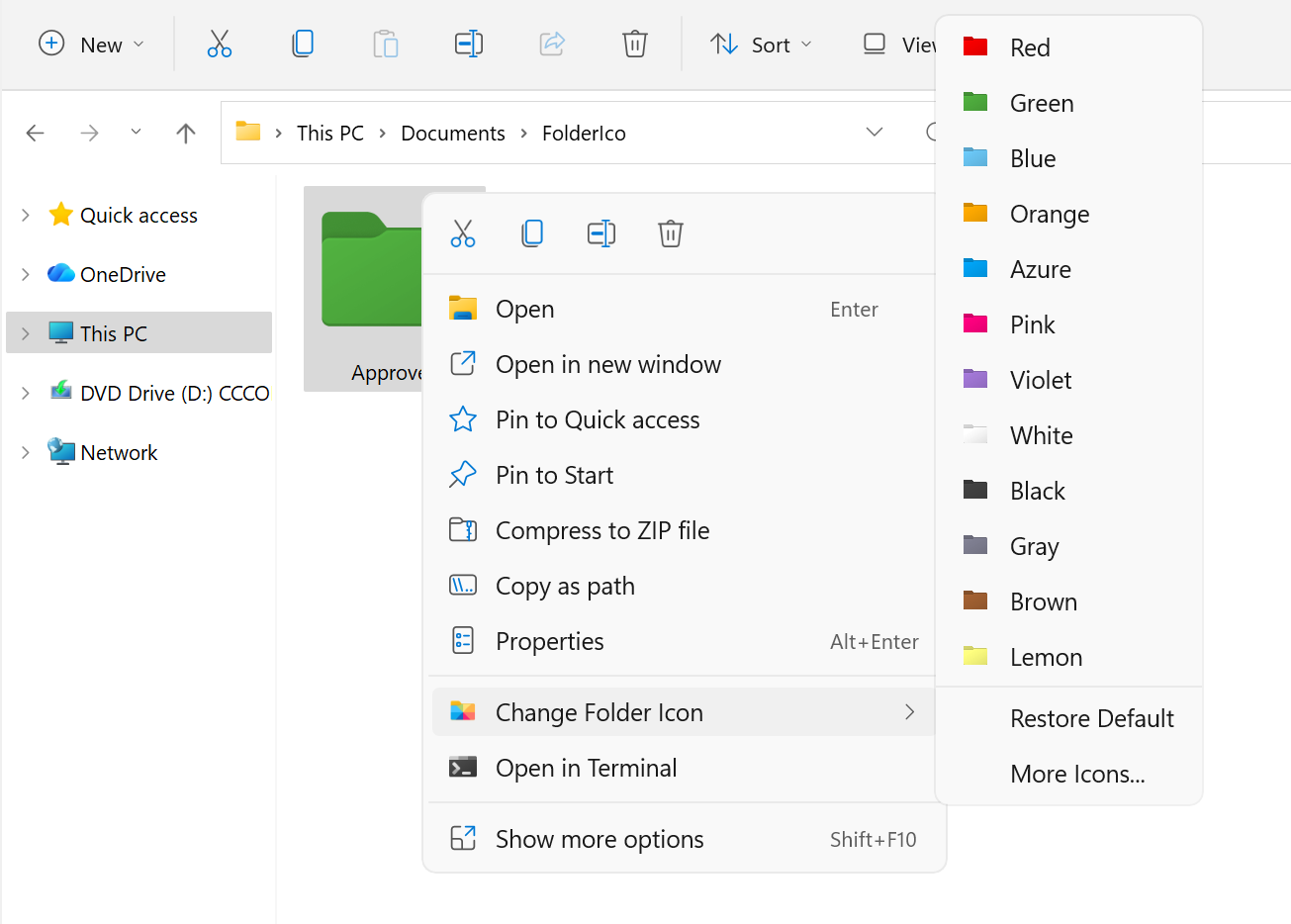
Apply custom folder icons directly from Explorer in just a few clicks.
Color-code folders by status or category
Windows does not provide a built-in option to change folder colors directly.
Folder colors are applied by using colored folder icons, making folders much easier to sort by type, status, or importance.
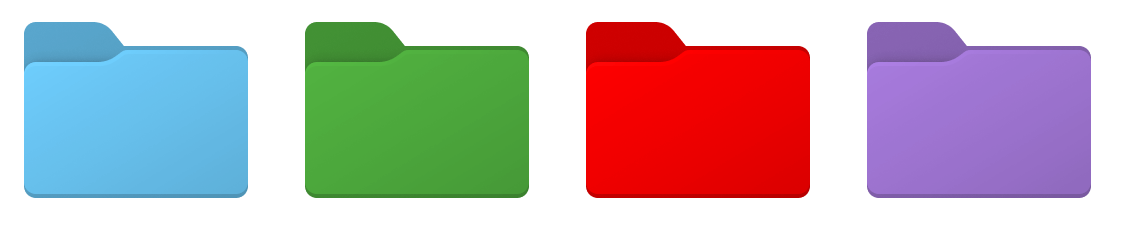
For example, you can use one color for work folders, another for personal files, and another for urgent tasks or active projects. The dedicated folder color tutorial explains the right-click steps and how the free version works.
Build a custom design with stickers and covers
Folder customization goes beyond simple icon or color changes.
You can create your own folder icon by combining color, stickers, and cover images into a unique design. This is different from simply assigning a ready-made icon.
- Change the folder color
- Add a sticker to highlight the folder purpose
- Use an image as a folder cover
- Combine all elements into one custom folder icon
Once you create a folder icon you like, you can save it to your favorites and reuse it anytime. See the folder icon editor guide for the full design workflow.
This makes it easy to build a consistent visual system - for example, one design for work folders, another for personal files, or different icons for each project.
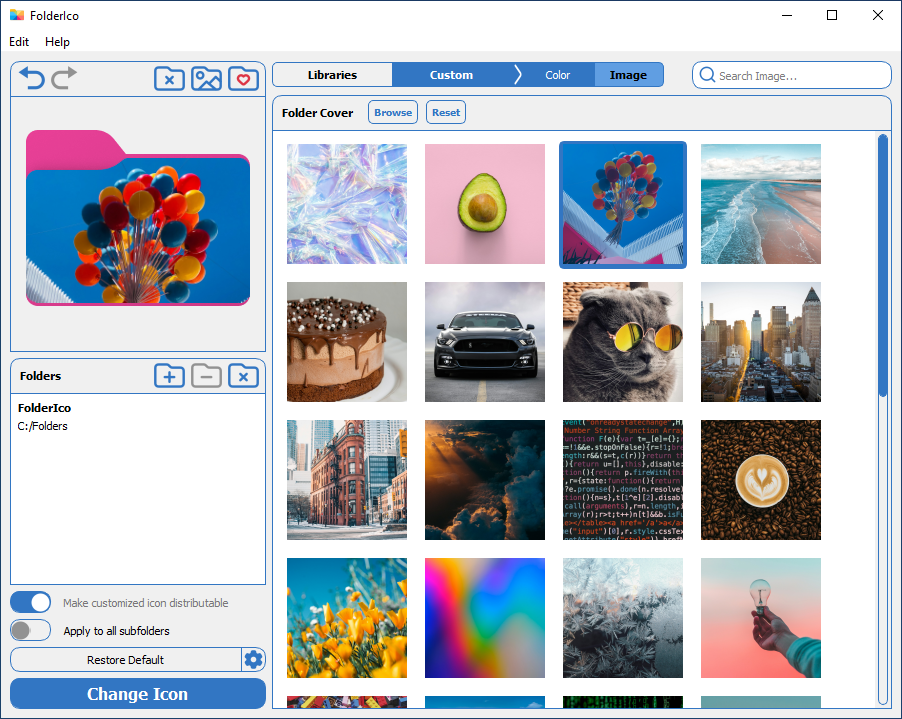
FolderIco includes thousands of stickers, stock images, and ready-made folder icon libraries. You can also use your own images to create fully custom folder designs.
To make everything faster, built-in search helps you quickly find icons, stickers, images, and ready-made folder designs without browsing manually.
Choose a folder customization workflow
| Feature | Windows default | FolderIco Best |
|---|---|---|
| Change folder icons | Manual, limited | Instant, right-click |
| Change folder colors | Not supported directly | Built-in |
| Add stickers and cover images | Not available | Built-in |
| Create custom folder designs | Very limited | Colors, stickers, covers, icons |
| Save favorites and reuse designs | Not practical | Easy |
| Built-in icon libraries | Not available | Included |
| Search for icons and graphics | Not available | Fast built-in search |
If you want full control over folder appearance, a dedicated customization tool is the fastest and most practical solution.
Frequently asked questions
Still have questions? Here are quick answers.
No. Folder customization changes how the folder appears in File Explorer; it does not rename, edit, move, or convert the files stored inside the folder.
Start with a limited color system for statuses or categories, then add stickers only where two folders need more distinction. Reusing a few saved designs is faster and clearer than making every folder unique.
A Windows folder icon can reset if its settings point to an icon file that no longer exists. Store the icon with the folder or use FolderIco's distributable option when the folder needs to be moved or copied.
Yes, when the icon resource and Windows folder settings are included with the folder. Test one distributable folder on the destination computer before moving a large collection.
No. Keep descriptive folder names and combine colors with symbols or stickers. That makes the system understandable in search results, list views, and for people who do not distinguish every color easily.