Custom icons make shared network folders easier to identify and organize, especially when multiple people work with the same directories every day.
Instead of looking at identical default folders, your team can instantly recognize whether a folder is approved, pending, in progress, finished, or assigned to a specific project.
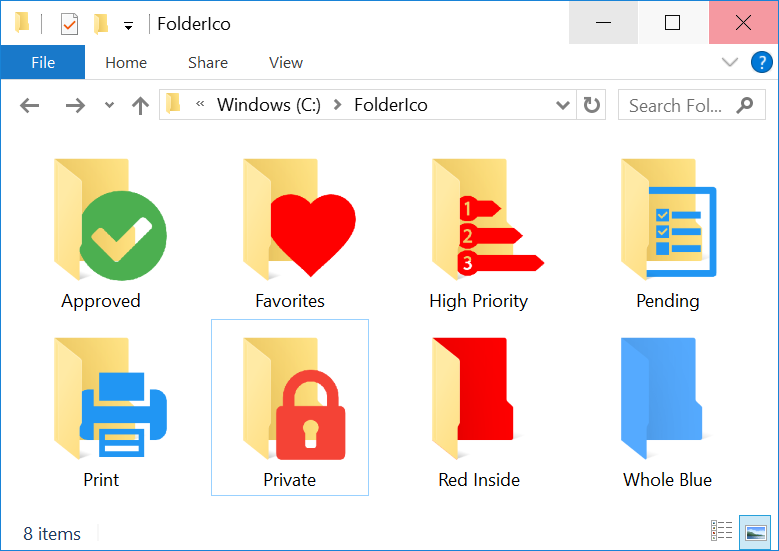
Why use custom icons for shared folders?
Shared folders often contain documents for different teams, statuses, clients, or workflow stages. Custom icons help make this structure easier to understand visually.
- Approved folders
- Pending folders
- In progress folders
- Finished folders
- Client or project-specific folders
A clear visual system reduces confusion and helps teams navigate faster.
Assign an icon to a shared network folder
With FolderIco, changing the icon of a shared folder is simple. You can apply a built-in icon, choose one from your library, or create your own custom icon.
On Windows, you can right-click the shared folder and open FolderIco directly from Explorer.
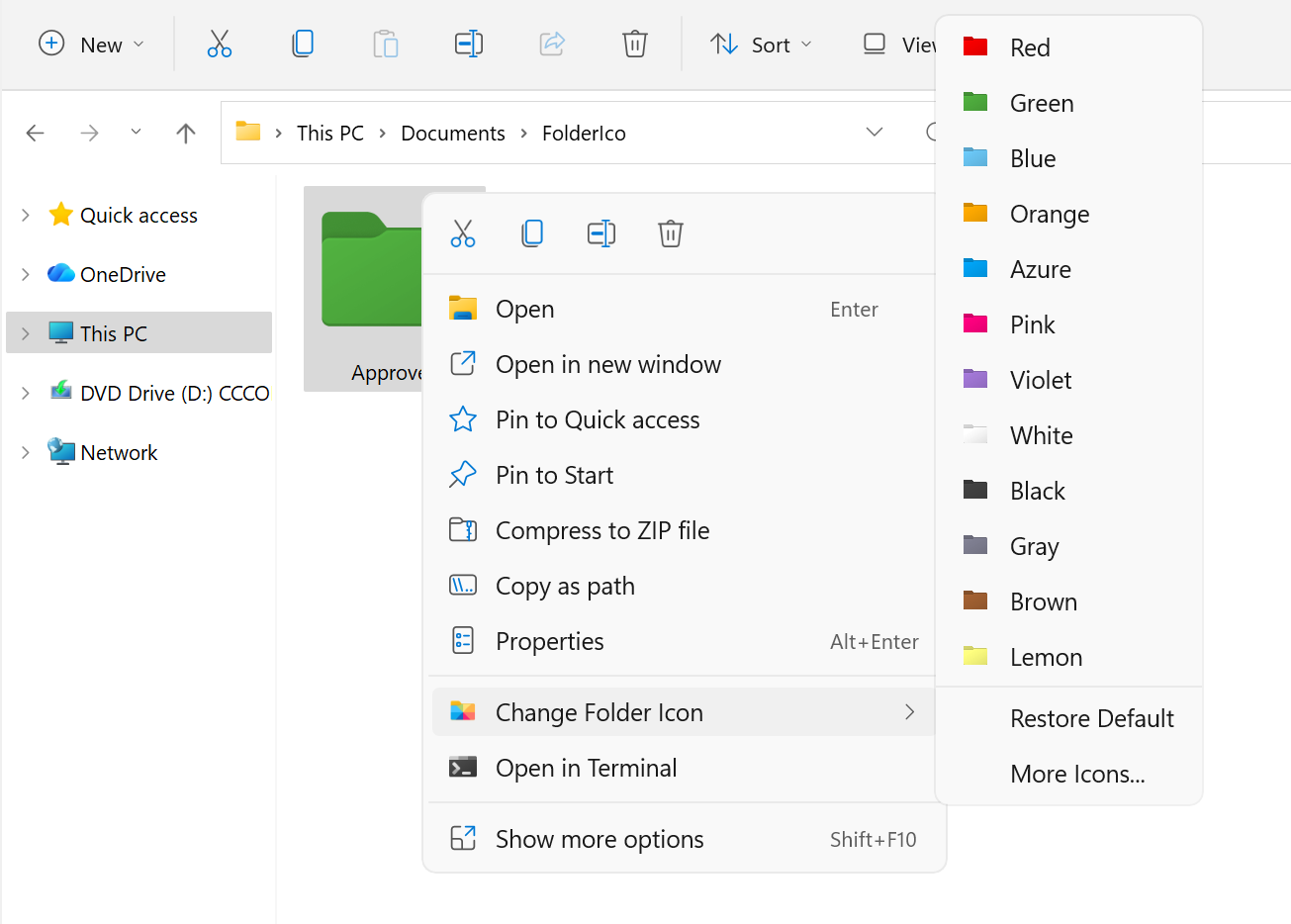
To make the icon visible to other users on the network:
- Your account must have permission to modify the shared folder
- The 'Keep icon in the folder' option must be enabled so the icon file is saved inside the folder
This is important because other users need access to the same icon resource. If the icon only exists on one PC, the shared folder may look normal on that computer but not on others.
If other users do not see the icon
In some cases, Windows Explorer may not display custom icons correctly for shared or network folders even when the icon was assigned properly.
The easiest fix is:
- On the computer where the icon is not visible, open FolderIco
- Go to Edit - Troubleshoot - Fix Explorer Settings
What does Fix Explorer Settings do? It enables the Windows option that allows File Explorer to load custom shortcut icons from remote or network paths, such as UNC paths or mapped drives. Without this option, shortcut icons stored on a network location may appear blank on some computers.
You can also enable this setting manually through the Windows Registry:
[HKEY_LOCAL_MACHINE\SOFTWARE\Policies\Microsoft\Windows\Explorer]
"EnableShellShortcutIconRemotePath"=dword:00000001
Or through Group Policy Editor:
Computer Configuration - Administrative Templates - Windows Components - File Explorer - Allow the use of remote paths in file shortcut iconsAfter changing this setting, restart Windows Explorer or restart the computer.
Requirements for Windows network folders
For a shared folder to keep its custom appearance, Windows Explorer must be able to read the folder customization settings and attributes correctly.
- The folder should keep its customization attributes, such as Read-Only
- The network share must allow those attributes to be stored and read properly
If needed, FolderIco repair tools can help restore missing folder settings.
Samba configuration for shared folders
If the network folder is hosted on a Samba share, extra configuration may be required because Samba does not always store Windows-style folder attributes by default.
In your share definition in /etc/samba/smb.conf, add:
store dos attributes = yesThen restart Samba.
This helps preserve folder attributes such as Read-Only, which Windows Explorer may need in order to display custom folder icons correctly.
Default Windows vs FolderIco
| Feature | Windows default | FolderIco Best |
|---|---|---|
| Assign custom icon to shared folder | Possible but manual | Simple and fast |
| Store icon inside shared folder | Manual setup | 'Keep icon in the folder' option |
| Fix Explorer display issues | No built-in repair | Built-in troubleshooting |
| Use built-in icon libraries | Not available | Included |
| Create a visual team workflow | Limited | Easy |
If you want shared folders to be easier to recognize across multiple computers, a dedicated tool saves time and reduces setup problems.
Frequently asked questions
Still have questions? Here are quick answers.
Yes. You can assign a custom icon to a shared network folder as long as you have permission to modify the folder and save the icon settings inside it.
The icon file may not be stored in the shared folder, or Windows Explorer on their computer may not be configured to show custom icons correctly for network folders.
Enable the 'Keep icon in the folder' option so the icon file is stored inside the shared folder, and make sure users have access to that location.
If needed, apply the Explorer repair fix on computers where icons do not appear.
Yes. If custom icons are not visible on a specific computer, the fix must be applied on that computer because the issue is local to Windows Explorer settings.
Sometimes yes. On Samba shares, enabling store dos attributes = yes helps preserve Windows folder attributes needed for custom folder icons.