A folder icon library is the fastest option when you want a ready-made design instead of creating an icon from scratch.
FolderIco keeps those designs inside the application, where you can search for an icon and apply it to a Windows folder from the same workflow.
Built-in folder icons for Windows
FolderIco includes ready-to-use folder icon libraries directly inside the application.
Instead of searching for icon packs, downloading files, and importing them manually, you can browse built-in folder icons and apply them right away.
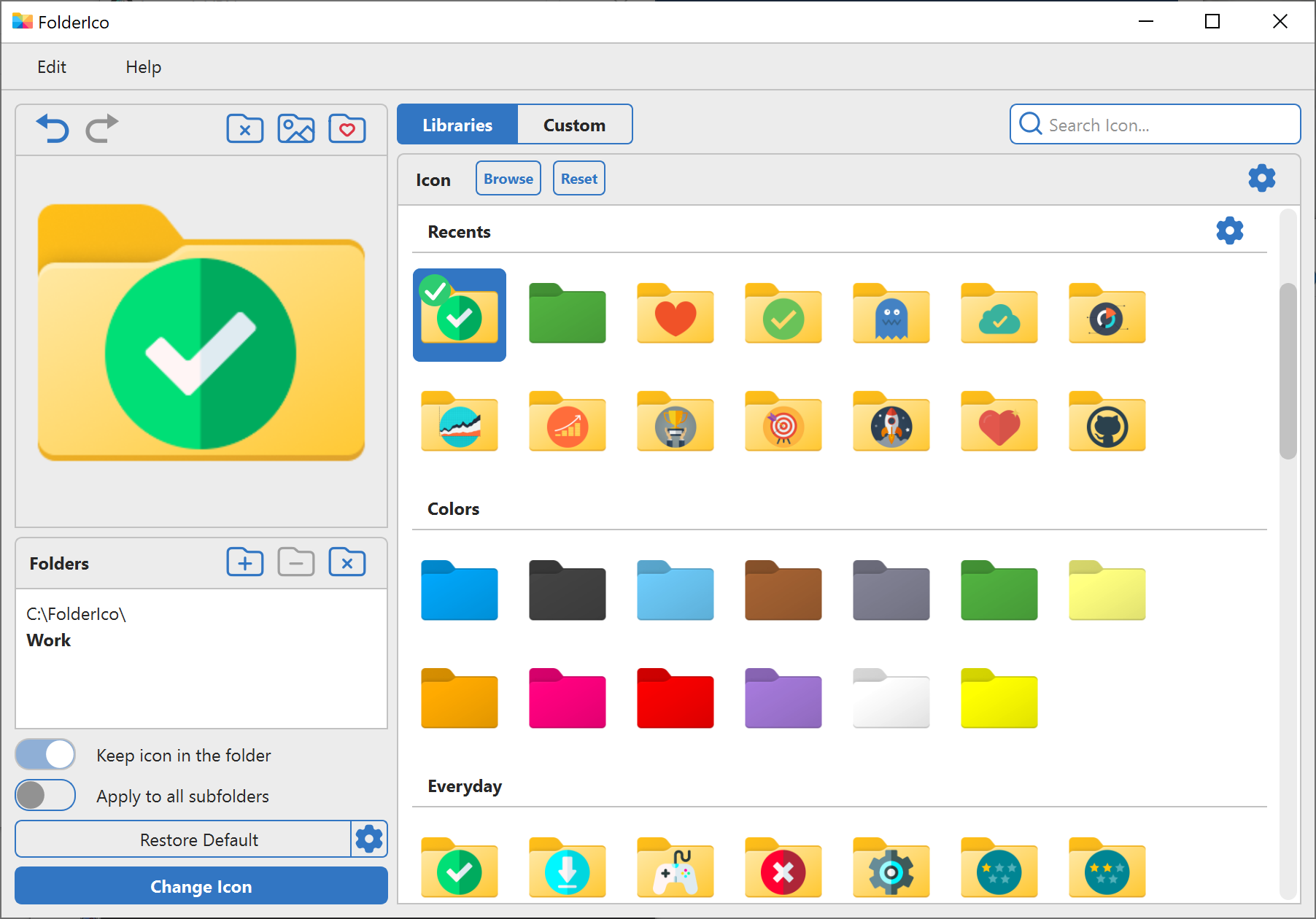
- Folder icons for projects
- Folder icons for work and personal files
- Folder icons by category or purpose
- Classic, modern, and custom folder styles
This makes it much faster to organize folders in Windows 11 and Windows 10.
Find icons faster with search
When you work with many icon choices, search becomes essential.
FolderIco includes built-in search, helping you quickly find folder icons, stickers, and cover images without browsing through everything manually.
This is especially useful when you want to build a clear visual system for documents, projects, clients, archives, or workflow stages.
When a ready-made icon is not enough
A library works best when an existing design already represents the folder. For a client logo, product image, project cover, or a specific visual system, create a custom icon instead.
The Folder Icon Editor lets you combine different visual elements, while the image folder icon guide explains how to use a PNG, JPG, logo, or photo directly.
- Change folder color
- Add a sticker
- Use an image as a cover
- Combine these elements into one unique folder icon
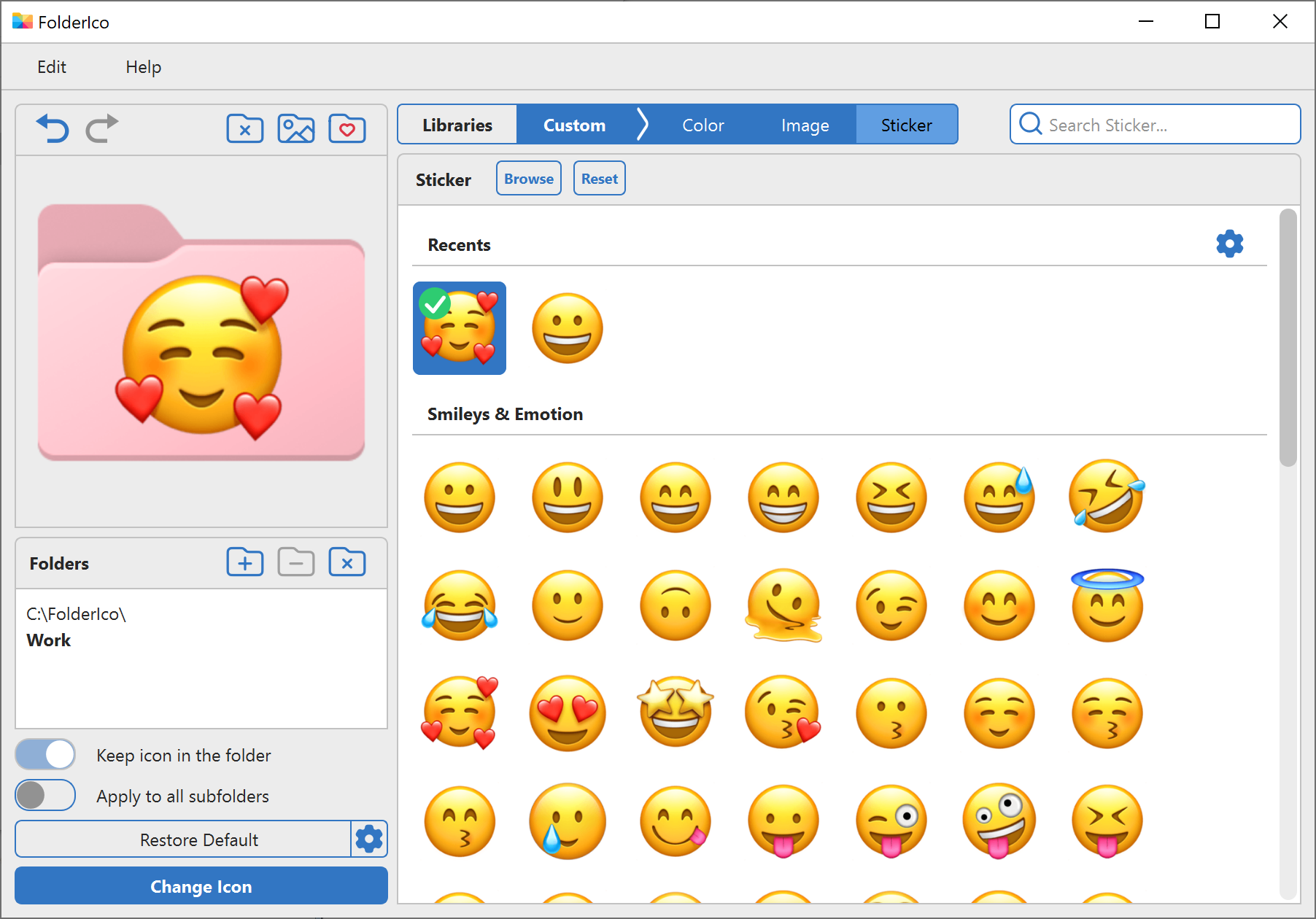
Once you create a folder icon you like, you can save it to favorites and reuse it later on other folders.
This helps you create a consistent visual system for work folders, personal files, urgent tasks, archives, or project categories.
Why built-in icons are better than separate libraries
In the past, folder icon libraries often had to be downloaded and imported separately.
Now everything is available directly inside FolderIco, which makes the process simpler, faster, and easier to maintain.
| Feature | Separate icon libraries | FolderIco Built in |
|---|---|---|
| Icons available immediately | Need download/import | Built-in |
| Search for icons | Usually limited | Fast built-in search |
| Create your own icon | Not included | Colors, stickers, covers |
| Save favorites | Not practical | Easy |
| Use in Windows Explorer | Extra steps | Simple |
Choose folder icons by purpose
Search for an icon that communicates the folder purpose at small sizes. Clear subjects are usually more useful than highly detailed artwork.
- Projects: briefcases, tools, client symbols, or status marks.
- Documents: invoices, reports, contracts, spreadsheets, or archives.
- Media: photos, music, video, design, or presentation icons.
- Personal folders: travel, family, learning, finance, or hobbies.
If you want more control, you can go beyond built-in icons and create folder designs that are unique to your own system.
Frequently asked questions
Still have questions? Here are quick answers.
It can, provided the icon resource travels with the folder. In FolderIco, enable the distributable option so the icon is stored with the folder instead of depending on a separate file path.
Yes. You can import compatible icon files into a custom FolderIco library, organize them under your own library name, and export that library for backup or use on another computer.
Choose a simple, high-contrast symbol with a clear silhouette. Fine text and detailed photos become difficult to recognize when File Explorer displays the folder at a small icon size.
File Explorer may still be using its icon cache. Refresh the folder or restart Explorer first; if the old icon remains, rebuild the icon cache and check that the icon file and desktop.ini settings still exist.
Use a small set of colors for status or priority, reserve distinctive symbols for important folder types, and save frequently used designs to Favorites. A repeatable system is easier to scan than a unique icon for every folder.