Custom folder icons rely on hidden Windows settings such as desktop.ini, folder attributes, and the Explorer icon cache. If one of these breaks, the folder may go back to the default icon or stop updating correctly.
Quick fix: repair the folder icon
The fastest way to solve the problem is to use the built-in repair feature in FolderIco. It restores the folder attributes and recreates missing icon settings automatically.
- Open FolderIco.
- Add the folder you want to fix.
- If needed, enable Apply to all subfolders.
- Click the gear icon near Restore Default.
- Select Repair Folder Icons.
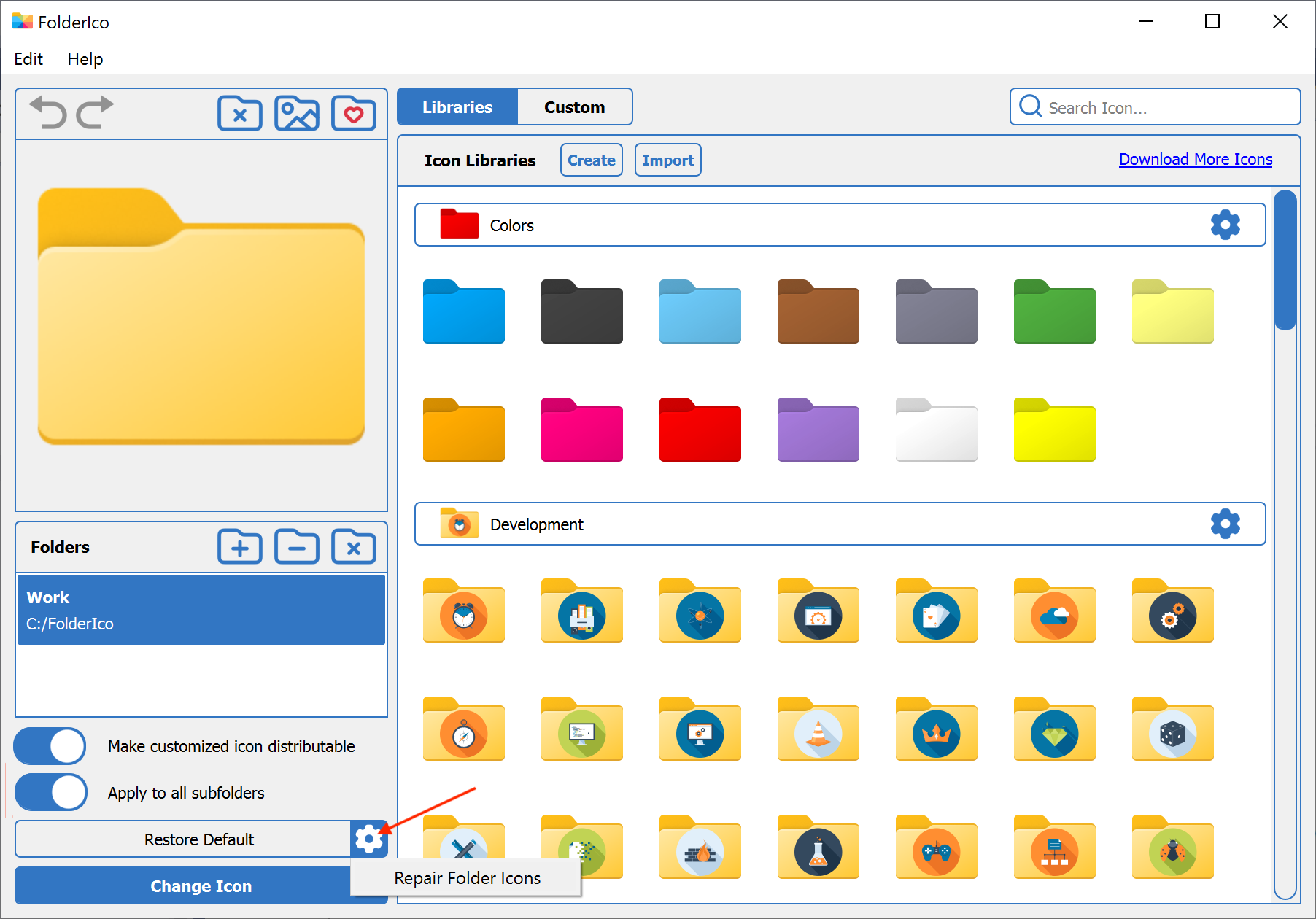
FolderIco restores the required folder settings so Windows can display the custom icon again.
Why custom folder icons stop showing
Windows displays custom folder icons only when all required settings are present and valid. The most common reasons the icon disappears are:
- Missing or broken desktop.ini file
- Folder attributes were lost during copy or move
- Cloud sync removed or ignored system files
- Windows Explorer is still showing a cached old icon
- Custom folder icons for network folders may be disabled in local Explorer settings
Common problems and solutions
Custom icon does not show for network folders
In some cases, Windows Explorer does not display custom icons correctly for folders stored on network drives or shared locations.
Fix:
- Open FolderIco on the computer where the icon is not visible.
- Go to Edit - Troubleshoot - Fix Explorer Settings.
This adjusts Windows Explorer on that specific computer so custom icons are displayed correctly for network folders.
What does Fix Explorer Settings do? It enables the Windows option that allows File Explorer to load custom shortcut icons from remote or network paths, such as UNC paths or mapped drives. Without this option, shortcut icons stored on a network location may appear blank on some computers.
You can also enable this setting manually through the Windows Registry:
[HKEY_LOCAL_MACHINE\SOFTWARE\Policies\Microsoft\Windows\Explorer]
"EnableShellShortcutIconRemotePath"=dword:00000001
Or through Group Policy Editor:
Computer Configuration - Administrative Templates - Windows Components - File Explorer - Allow the use of remote paths in file shortcut iconsAfter changing this setting, restart Windows Explorer or restart the computer.
Icon disappeared after copying or moving the folder
This usually happens when the icon was not stored inside the folder itself.
Fix: make sure the Keep icon in the folder option was enabled when assigning the icon. It is enabled by default.
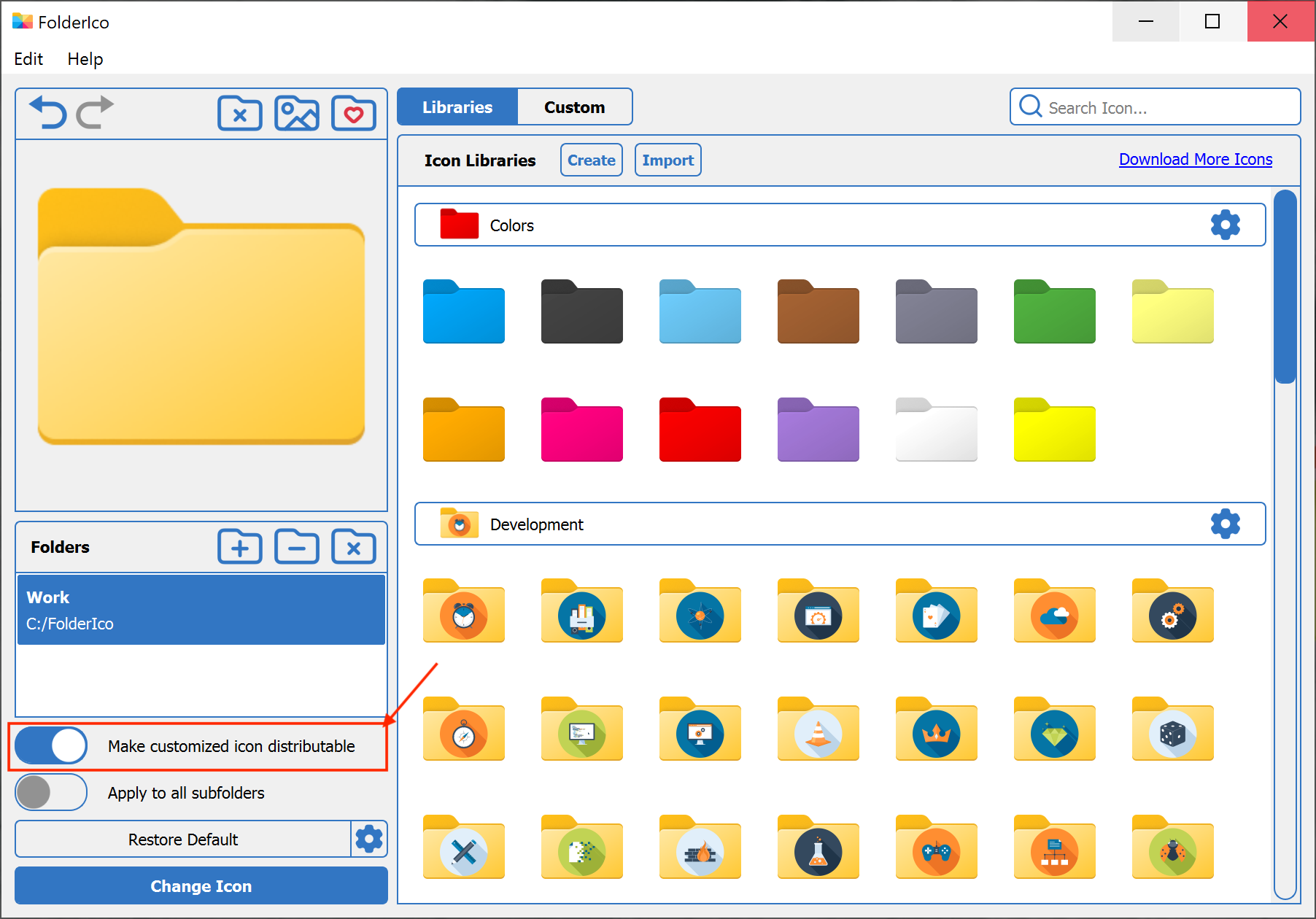
If the folder was already moved, the solution depends on how the icon was assigned:
- If the Keep icon in the folder option was not enabled, reapply the icon.
- If Keep icon in the folder was enabled, run Repair Folder Icons to restore the missing settings.
If the folder contains customized subfolders, enable Apply to all subfolders before fixing.
Icon is missing after cloud sync
Some cloud services may ignore or overwrite system files like desktop.ini, which Windows needs to display custom folder icons.
Fix: run Repair Folder Icons. If you want to restore icons in nested folders too, enable Apply to all subfolders.
Icon does not update after changing it
Windows may keep displaying an old version from the Explorer icon cache.
Fix:
- Open FolderIco.
- Go to Edit - Troubleshoot - Refresh Explorer Icon Cache.
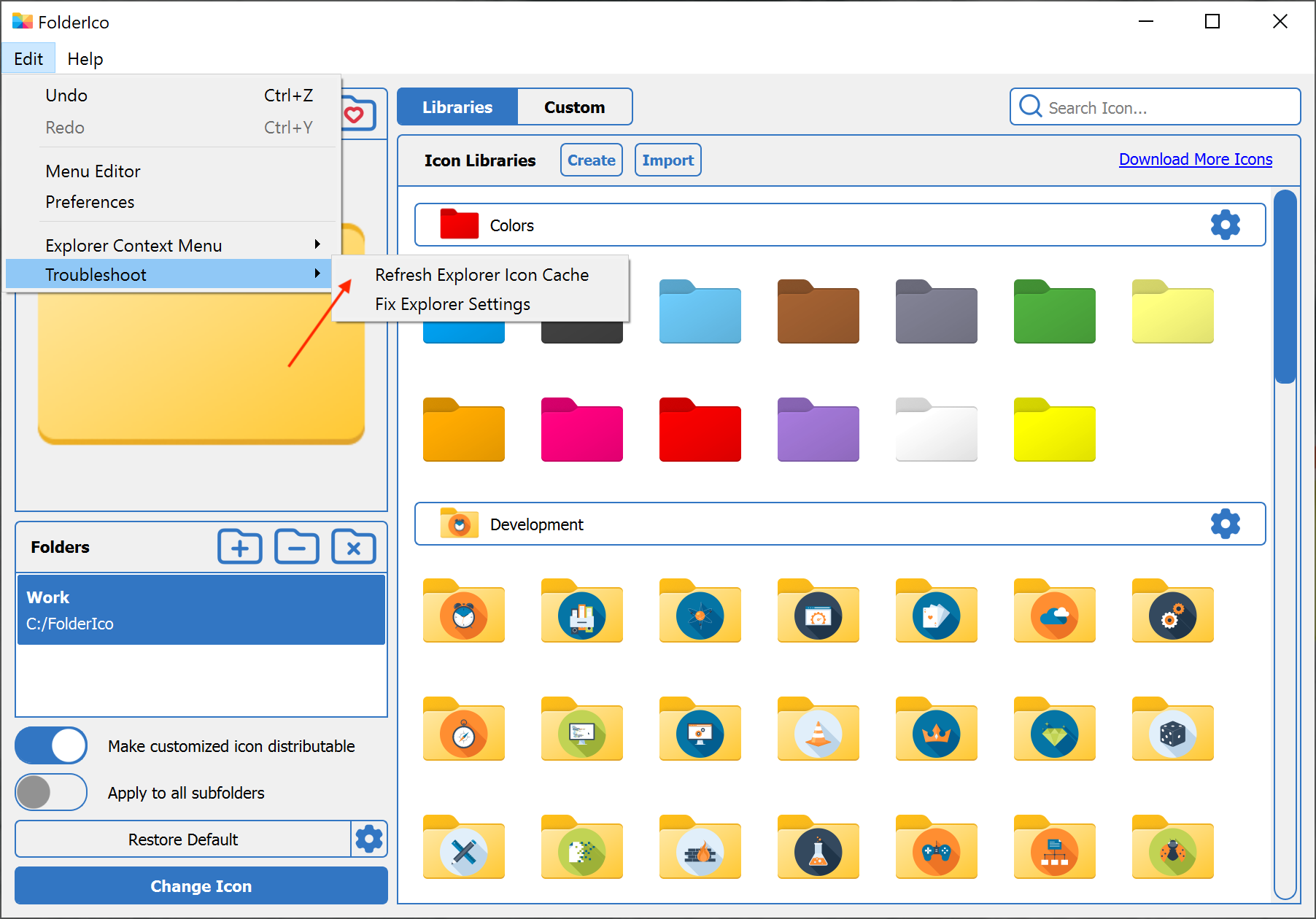
This forces Windows to reload folder icons correctly.
Default troubleshooting vs FolderIco
You can try to fix missing folder icons manually, but the process is usually slower and less reliable.
| Task | Manual Windows troubleshooting | FolderIco Best |
|---|---|---|
| Restore missing icon settings | Manual checks | Automatic repair |
| Fix copied or moved folders | Reconfigure folder | Repair in seconds |
| Refresh Explorer icon cache | Manual troubleshooting | Built-in command |
| Repair many subfolders | Slow and repetitive | Apply to all subfolders |
| Fix network folder display | Hard to diagnose | Explorer settings fix |
If the icon issue affects only one folder, manual troubleshooting may work. But if you need a fast and reliable fix, FolderIco makes the process much easier.
Frequently asked questions
Here are the most common questions about missing custom folder icons.
This usually happens because Windows lost the folder icon settings after a copy, move, sync, or cache issue.
Missing desktop.ini data, broken attributes, or Explorer cache problems are the most common causes.
The quickest solution is to run Repair Folder Icons in FolderIco.
This restores required folder settings automatically and is much faster than manual troubleshooting.
This usually happens when the Keep icon in the folder option was not enabled, so the icon file is no longer available after moving the folder.
If the option was not enabled, reapply the icon. If it was enabled, run Repair Folder Icons.
Some cloud services may ignore or overwrite system files like desktop.ini, which Windows uses to display custom folder icons.
If these files are missing, the icon may not show correctly. Run Repair Folder Icons to restore them.
Windows Explorer may still be using a cached version of the old icon.
Refreshing the Explorer icon cache forces Windows to load the current icon again.
Yes, but in some cases Explorer settings on a specific computer may prevent them from displaying correctly.
Running Fix Explorer Settings in FolderIco usually solves this.