Work becomes harder to manage when every folder looks the same. If all folders use the default appearance, you spend more time searching and less time actually working.
A simple way to improve file organization is to turn folders into a visual system. When folders use different colors, icons, covers, or stickers, you can immediately recognize what they contain and what they are for.
Why visual folders help manage work
A visual folder system helps you understand your workspace faster. Instead of reading every folder name one by one, you can recognize meaning instantly.
- Red for urgent work
- Green for completed tasks
- Blue for personal or internal files
- Custom icons for clients, projects, or departments
- Covers or stickers for workflow stages or file categories
This makes it easier to keep track of priorities, organize teams, and reduce mistakes when switching between multiple folders.
Step 1: Open FolderIco from Explorer
Right-click any folder in Windows Explorer and open FolderIco from the context menu.
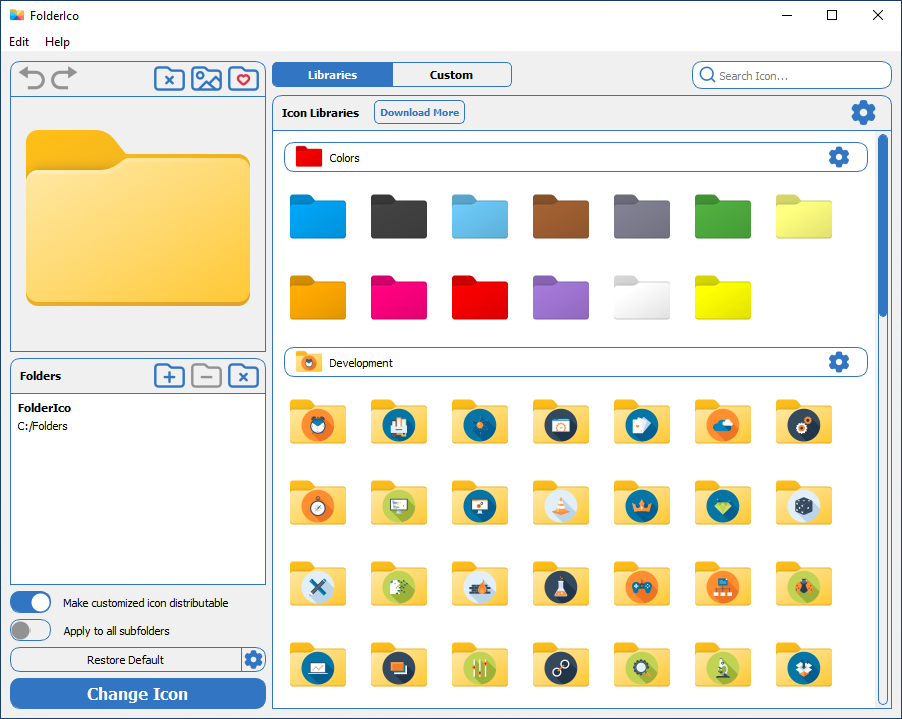
Start folder customization directly from Explorer without extra setup.
Step 2: Add colors, icons, stickers, or covers
Choose a color to classify the folder, add a sticker to highlight its purpose, or use a cover image to make it easier to recognize.
You can use built-in folder icons, ready-made libraries, stock images, or your own pictures.
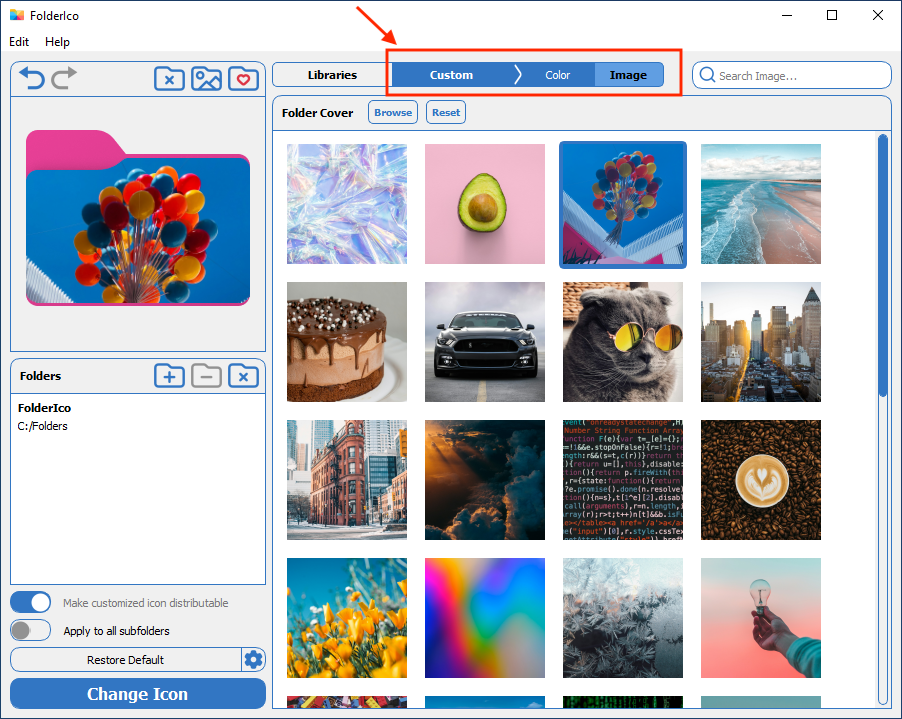
In just a few clicks, a standard folder becomes much easier to identify and much more useful in daily work.
Step 3: Create reusable folder designs
Instead of customizing each folder from scratch every time, you can create a folder design that fits your workflow and reuse it later.
- Build one design for urgent tasks
- Create another for completed work
- Use different looks for clients, projects, or departments
Once you create a folder icon you like, you can save it to favorites and apply it again whenever needed.
This helps keep your folder organization consistent across your entire workspace.
Step 4: Find icons and graphics faster with search
FolderIco includes built-in search, so you can quickly find icons, stickers, cover images, and ready-made folder designs without browsing manually.
This is especially useful when you work with many folders and want to build a visual system quickly.
Step 5: Keep folder icons when moving or sharing folders
FolderIco can save icons directly inside the folder. This helps keep the custom appearance when you move the folder to another computer, external drive, or shared location.
If the icon is not stored with the folder, the custom look may only appear on the current system.
Default Windows vs FolderIco
| Feature | Windows default | FolderIco Best |
|---|---|---|
| Organize folders visually | Very limited | Easy |
| Change folder colors | Not supported directly | Built-in |
| Add icons, stickers, and covers | Limited | Flexible |
| Save favorites and reuse designs | Not practical | Easy |
| Search for icons and graphics | Not available | Built-in search |
| Keep icons when moving folders | Manual setup | Distributable option |
If you want folders to actively support your workflow instead of just storing files, visual customization is one of the fastest improvements you can make.
Frequently asked questions
Still have questions? Here are quick answers.
Choose one meaning for color and use it consistently. For example, let colors show workflow status and use stickers or folder names for departments; using the same color for several meanings makes the system harder to scan.
Document a short legend, keep the palette small, and agree on a naming pattern. Place the legend in the shared project root so new team members do not have to guess what each color or symbol means.
No. Icons are a visual shortcut, but clear names are still needed for search, accessibility, list views, and situations where a custom icon is unavailable. Use visuals as a second signal rather than the only label.
Yes. If the icon is stored inside the folder using a distributable option, the custom appearance can travel with the folder to another computer or drive.
They can, but the result depends on whether the storage service preserves hidden desktop.ini files, folder attributes, and icon resources. Test a single shared folder on every relevant computer before rolling out the system.