A folder icon changer is useful when you customize folders regularly, need more than ICO files, or want one workflow for colors, images, icon libraries, and multiple folders.
This page helps you evaluate those capabilities. For the exact manual steps, use the separate Windows folder icon how-to.
What does a folder icon changer do?
A folder icon changer updates the visual icon Windows shows for a selected folder. The goal is simple: make folders easier to identify without changing their names or moving them into a new structure.
- Change the default folder icon to a custom icon.
- Apply folder colors for priority, status, or category.
- Use images, logos, or project graphics as folder icons.
- Keep frequently used folders visually distinct.
- Create a consistent visual system across work and personal files.
When Windows Properties is enough
Windows Properties is enough when you already have an ICO file and only need to change one folder occasionally. It costs nothing and does not require another application, but every folder uses the same multi-step dialog and normal images must be converted first. The step-by-step Windows guide covers that workflow in detail.
Use FolderIco as a faster folder icon changer
FolderIco adds folder icon tools to File Explorer, so you can customize a folder from the context menu instead of opening several Windows dialogs.
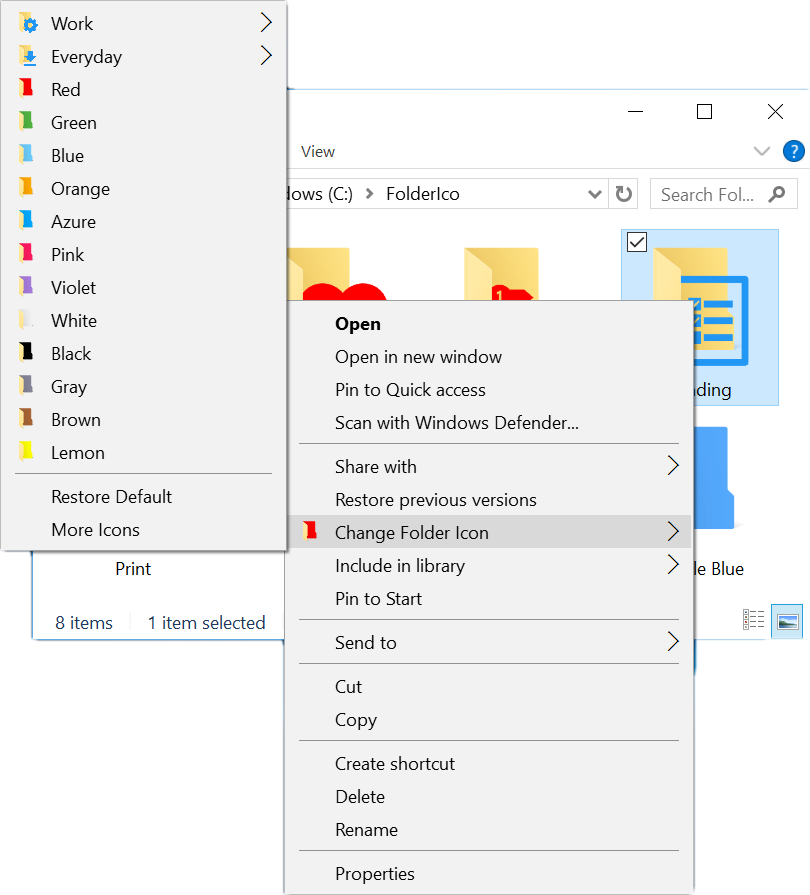
Right-click a folder and choose a new icon or color directly from the FolderIco menu.
What to look for in a folder icon changer
- Explorer integration: apply a design without opening several settings dialogs.
- Image support: use PNG, JPG, WebP, BMP, or TIFF without preparing ICO files manually.
- Icon discovery: search ready-made libraries instead of managing downloaded icon packs.
- Visual editing: combine colors, stickers, and covers when a ready-made icon is not enough.
- Repeatable workflows: reuse favorites and apply a consistent system across many folders.
- Repair tools: restore folder settings when Windows does not refresh or preserve an icon.

Choose the right workflow for the task
Folder customization covers several different jobs. Use the focused guide that matches what you are trying to do:
- For one manual ICO change, follow How to Change Folder Icons in Windows.
- For a PNG, JPG, logo, or photo, see Use an Image as a Folder Icon.
- For ready-made designs, browse the Folder Icon Library.
- For layered designs, use the Folder Icon Editor.
- For color coding, follow Change Folder Color in Windows.
Windows Properties vs FolderIco
Both methods can change a folder icon, but they are meant for different workflows.
| Feature | Windows Properties | FolderIco Faster |
|---|---|---|
| Change one folder icon | Built in | Built in and faster |
| Use the right-click menu | Not available | Yes |
| Use PNG or JPG images | Requires manual conversion | Automatic handling |
| Change folder colors | Not supported | Included |
| Browse icon libraries | Limited | Built-in libraries and search |
| Customize many folders | Slow and repetitive | Designed for frequent use |
When a folder icon changer is useful
Custom folder icons are most helpful when you use them as part of a simple system. You do not need to customize every folder. Start with the folders you open most often or the ones that are easiest to confuse.
- Mark active projects with one color and archived projects with another.
- Use icons for clients, departments, or file types.
- Give photo, video, design, invoice, and document folders different visual labels.
- Make shared team folders easier to recognize.
- Highlight important folders on your desktop or in frequently used workspaces.
Common folder icon problems
The folder icon does not update
File Explorer may be showing a cached version of the old icon. Refresh the folder, restart Windows Explorer, or reapply the icon.
The icon looks blurry
Folder icons need to look good at multiple sizes. If the source icon is too small, it can look pixelated in large icon view. Use a high-quality source image or a folder icon library that includes larger sizes.
The icon resets later
Windows uses folder settings and icon files to display custom folder icons. If those settings are removed, or if the source icon is moved, Windows may show the default folder icon again.
Frequently asked questions
Quick answers about using a folder icon changer in Windows.
Windows Properties is enough if you already have an ICO file and only need to change one folder.
A folder icon changer becomes useful when you want to use PNG or JPG images, apply folder colors, browse icon libraries, or customize folders regularly without repeating the same Windows dialogs.
Windows does not simply paint a new icon onto the folder. It stores folder customization data in a hidden desktop.ini file and uses folder attributes to know that the folder has custom settings.
If that file is removed, the folder attributes are lost, the icon file is moved, or a cloud sync tool ignores hidden settings, Windows may fall back to the default folder icon.
Simple images with a clear subject usually work best: logos, symbols, project graphics, document type marks, or high-contrast illustrations.
Detailed photos often become hard to read in small File Explorer views. If the folder needs to be recognized quickly, use fewer details and stronger shapes.
Custom folder icons are most reliable when Windows can still find the icon file and the folder keeps its customization settings.
Avoid pointing a folder icon to a temporary download, removable drive, or file that may be renamed later. If you move folders between computers, apply or repair the icons on the destination machine when needed.
Use a small visual system instead of giving every folder a completely unique design.
For example, use colors for status, stickers for file type, and custom images only for important projects, clients, or folders you open every day.
They can, but reliability depends on the storage provider and how it handles hidden desktop.ini files, folder attributes, and icon files.
For OneDrive, Dropbox, network shares, or shared team folders, test one folder first. If the icon does not appear for other users, the folder settings or icon file may not be syncing the way Windows expects.