A folder icon editor is useful when a ready-made icon is not specific enough. Instead of choosing from a fixed list, you can create a custom folder icon that matches the folder's real purpose: a project, client, trip, invoice set, product line, media collection, or personal category.
FolderIco includes the tools needed to build a custom icon directly in Windows & macOS. You can choose a folder color, add a sticker from the library or your own file, use an emoji as the sticker, place a cover image from search or your files, adjust the image on top of the folder preview, remove the background, and then apply the finished icon to the folder.
This guide focuses on designing a new icon. To assign an existing ICO file, follow How to Change Folder Icons in Windows. To use one photo or logo without composing layers, see Use PNG or JPG as a Folder Icon.
What you can build in FolderIco
FolderIco works like a simple folder icon editor. You can combine several visual layers until the folder is easy to recognize in File Explorer.
- Colors to mark status, priority, project type, or department.
- Stickers from built-in libraries, emoji stickers, or your own image files.
- Covers from your own images or the built-in image search library.
- Preview editing to move and resize stickers or covers directly on the folder.
- Background removal to make images cleaner before applying them.
Step-by-step: create and apply a custom folder icon
You do not need to design an ICO file manually. Start with the folder you want to customize, build the icon visually, and apply it when the preview looks right.
- Right-click the folder you want to customize in File Explorer and select FolderIco.
- Choose a folder color or search for the color you need.
- Add a sticker from the library, choose an emoji sticker, load your own sticker file, or choose a cover image.
- Search the built-in libraries if you need a specific icon, sticker, color, or cover.
- Move and resize the sticker or cover directly on the folder preview.
- Use background removal if the image needs a cleaner cutout.
- Apply the finished custom icon to the folder.
Start with color
Color is the fastest layer to understand. Before choosing images, decide what the folder color means in your system. For example, you can use green for completed work, red for urgent tasks, blue for reference files, yellow for active projects, and gray for archives.
FolderIco includes many color options and search, so you can quickly find a practical color instead of scrolling through presets. This is especially useful when you want several folders to follow the same visual system.
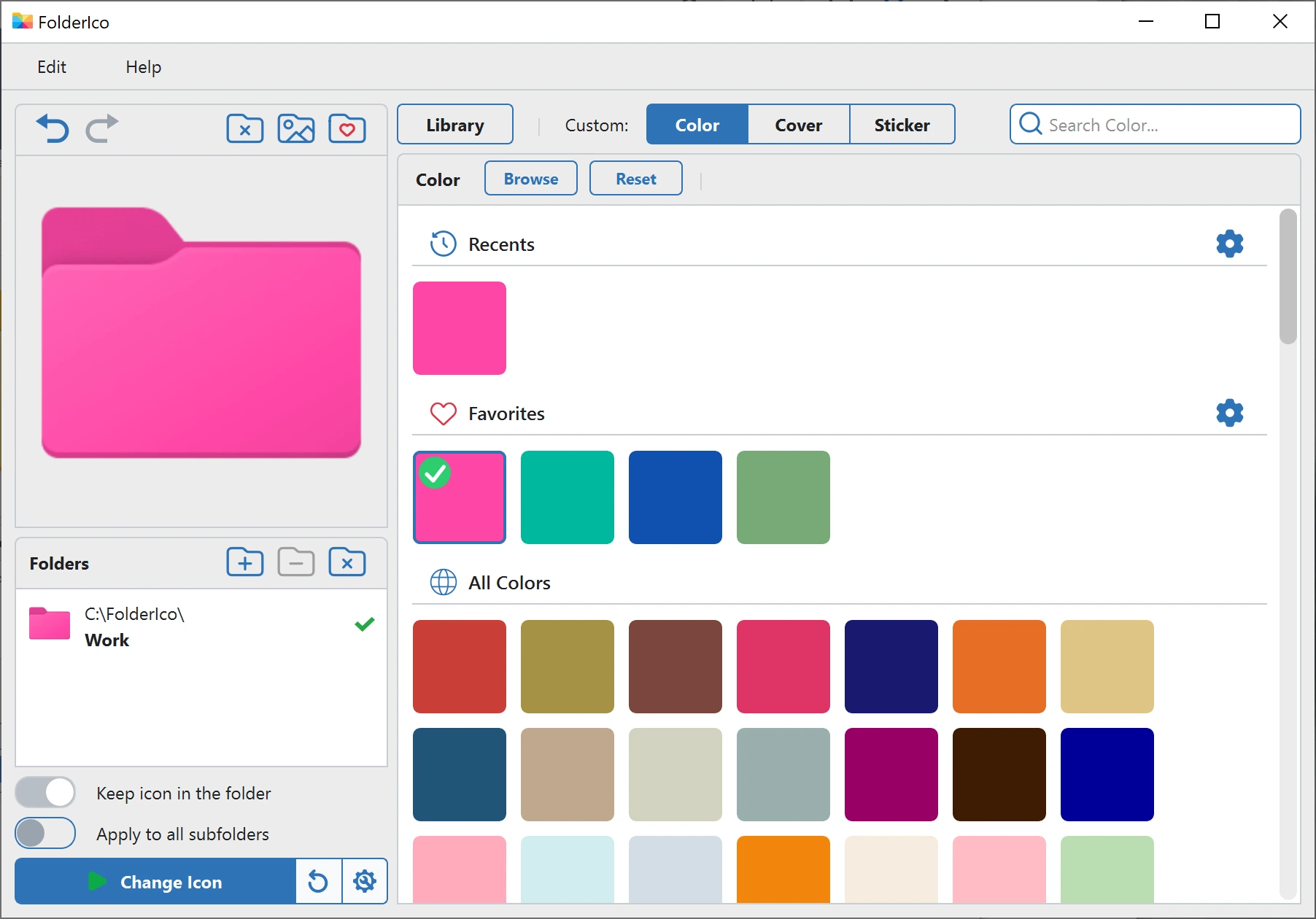
Start with a folder color so the icon already has a clear category or status.
Add a sticker, including emoji
A sticker turns a colored folder into something more specific. For example, a briefcase can mark work, a camera can mark photos, a lock can mark private files, and a check mark can mark completed tasks.
You can choose a sticker from FolderIco's libraries or load your own image file if you already have a logo, symbol, badge, product image, or small graphic you want to place on the folder.
A sticker can also be an emoji. Emoji are helpful when you want labels that are quick to understand: a star for favorites, a calendar for schedules, a money symbol for invoices, or a book for learning materials.
Stickers can be moved and resized directly on the folder preview. That matters because the same graphic can look very different depending on its size and position. Keep the sticker large enough to read, but not so large that it hides the folder shape.
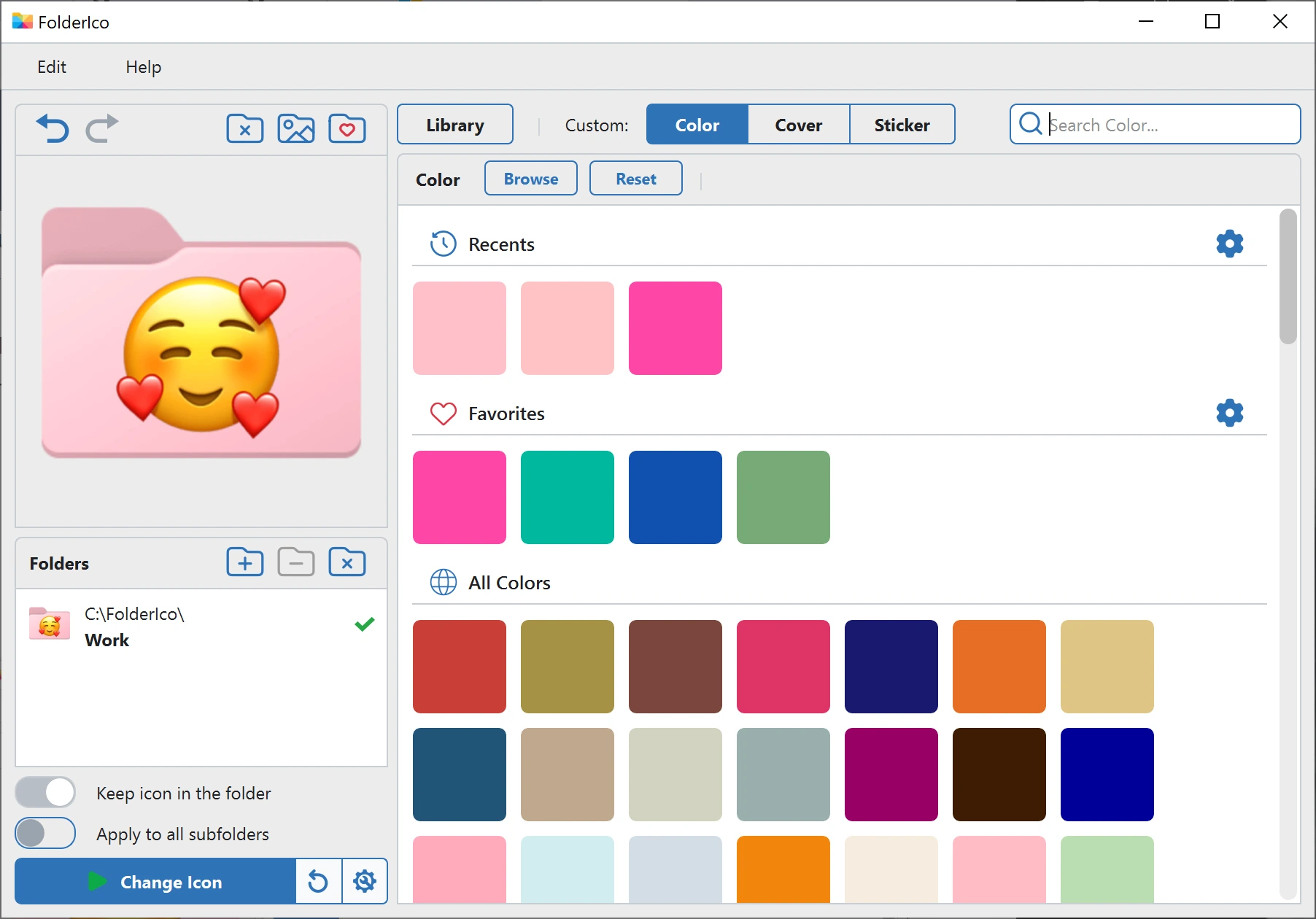
A sticker can be an emoji, making the folder meaning easy to understand at a glance.
Add a cover image to the design
Covers are best when the folder represents something visual: photos, design work, products, albums, videos, travel, clients, or brand assets. A cover image makes the folder easier to recognize before you even read the name.
FolderIco includes search across a large image library for folder covers. Search for the subject you need, choose an image, and place it on the folder preview. You can also choose a cover from your own files if you already have a logo, photo, screenshot, or artwork. For the simpler image-only workflow and supported formats, use the image folder icon guide.
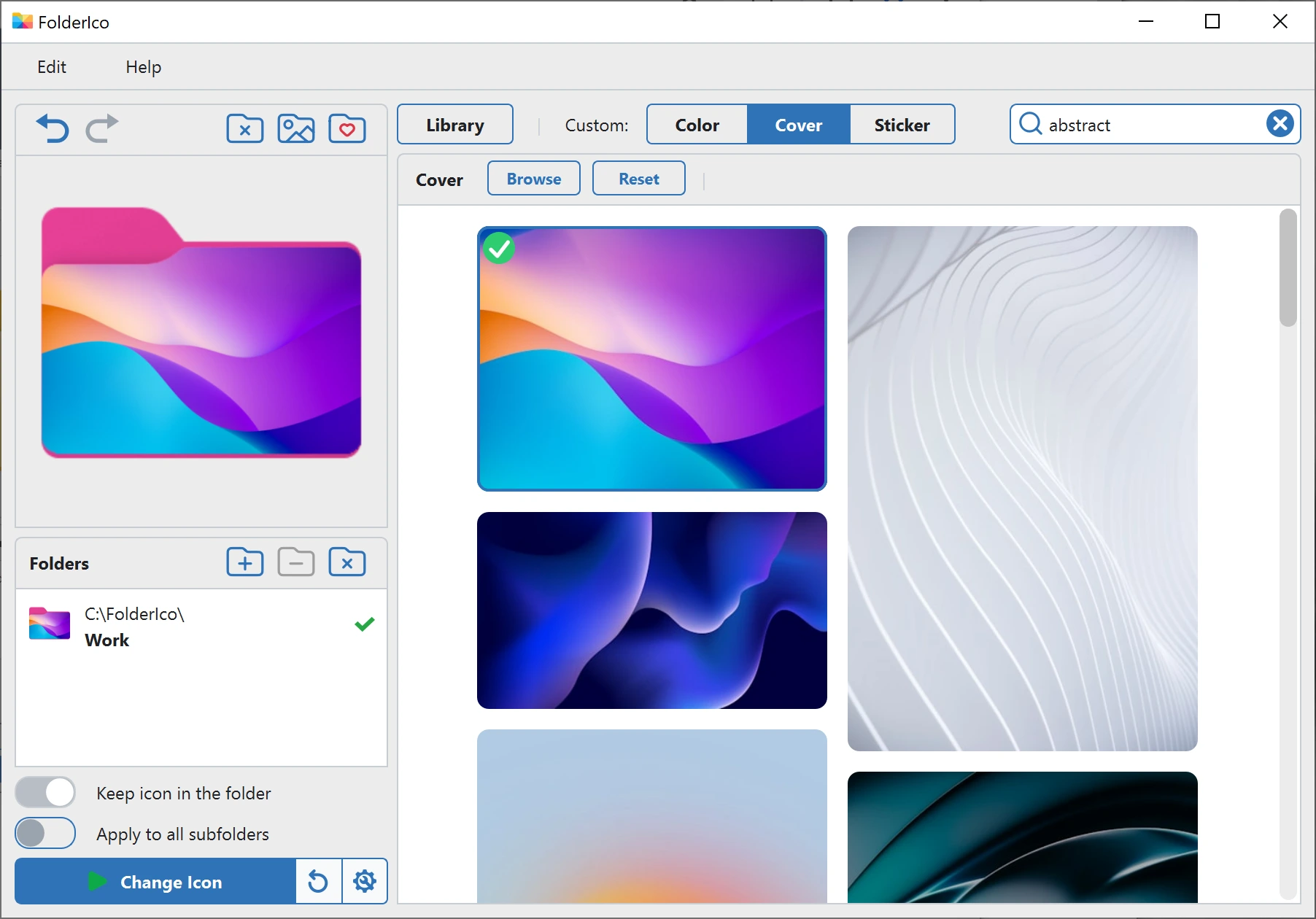
Add a cover when an image represents the folder contents better than a generic icon.
Search instead of browsing manually
The editor becomes much faster when you use search. FolderIco can help you find colors, icons, stickers, and cover images without digging through every library by hand.
- Search colors when you need a specific look or naming convention.
- Search stickers when you need a clear symbol for a file type or workflow stage, or load your own sticker file.
- Search covers when a photo, object, scene, or brand-style image would explain the folder better, or choose a cover from your own files.
- Search icon libraries when you want a ready-made folder design instead of composing one from layers.
Move and resize images on the folder preview
A good folder icon needs to stay readable at different File Explorer sizes. That is why the preview is important. In FolderIco, stickers and covers can be adjusted directly over the folder preview before you apply the icon.
Move the image until the important part is visible, then resize it so it feels balanced with the folder shape. For covers, avoid tiny details. For stickers, keep the shape bold enough to recognize quickly.
Remove the background for a cleaner result
Many images are useful but not ready for an icon. A logo may be sitting on a white square, or an object may have a busy background. FolderIco includes background removal for covers and stickers, so you can clean up the image before placing it on the folder.
Use background removal when you want the subject to sit naturally on the folder instead of looking like a pasted rectangle. It is especially useful for product images, logos, objects, and sticker-like graphics.
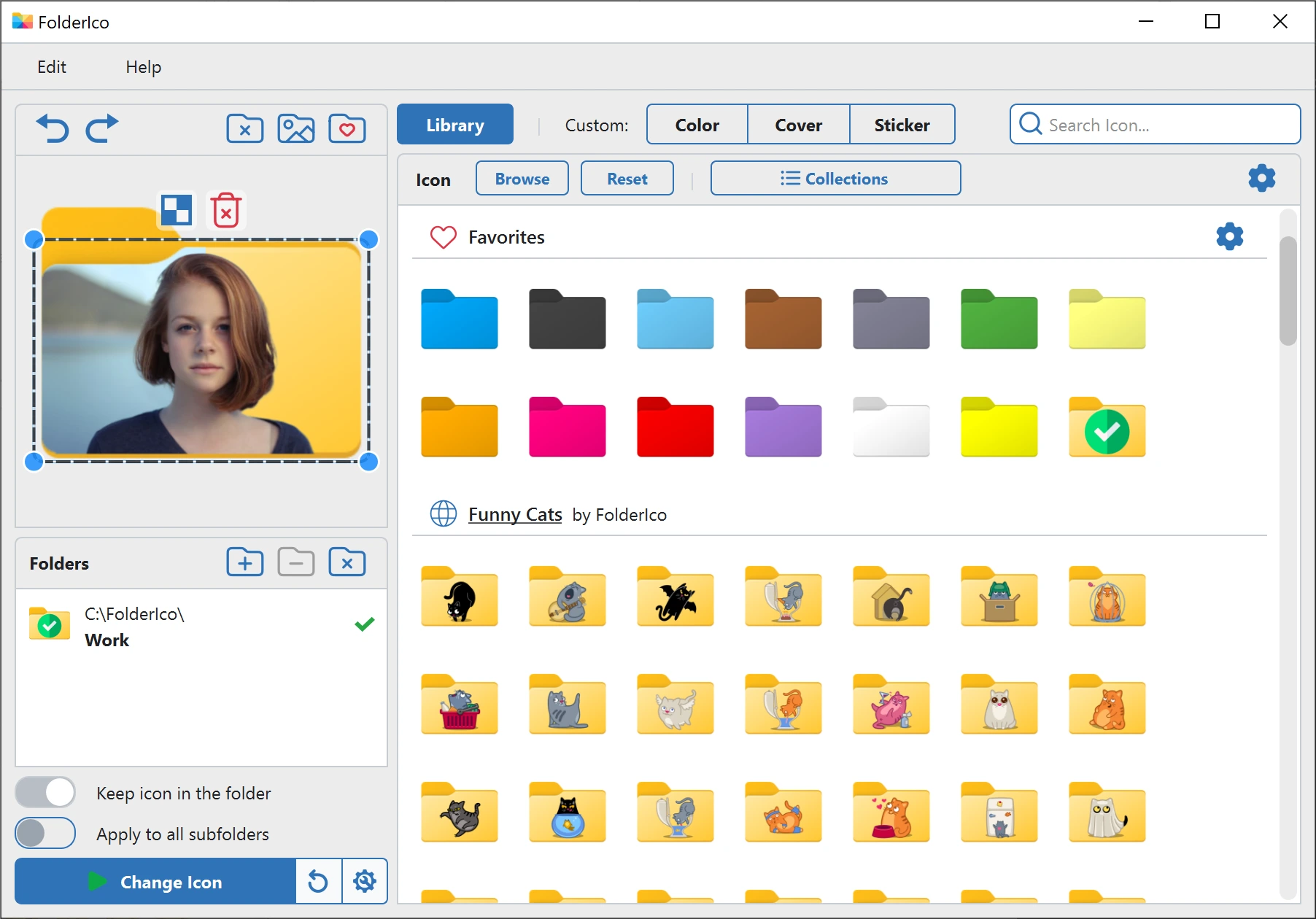
Background removal helps the cover sit cleanly on the folder instead of looking like a pasted rectangle.
Example custom folder icon systems
The best custom icons are consistent. Here are a few simple systems you can build with the editor.
- Client folders: use one folder color for clients, then add a logo or initials-style cover.
- Project status: use colors for status and stickers for project type.
- Media folders: use a cover image from the photo, album, game, or video.
- Finance folders: use a calm color plus a money, invoice, receipt, or chart sticker.
- Personal folders: use emoji stickers for travel, family, recipes, learning, or hobbies.
Folder icon editor vs manual icon design
You can create folder icons manually in a graphic editor, export an image, convert it to ICO, and then apply it through Windows Properties. That works, but it is slow and easy to overdo.
FolderIco keeps the process inside the folder customization workflow. You compose the icon, see it on the folder preview, clean up the image if needed, and apply it directly.
| Task | Manual workflow | FolderIco Editor |
|---|---|---|
| Choose folder color | Create or find a colored icon | Built-in colors and search |
| Add sticker | Edit image manually | Built-in stickers, emoji, and your files |
| Use cover image | Crop and convert image | Image search, custom covers, and your files |
| Position graphic | Guess in an external editor | Move and resize on preview |
| Remove background | Use another editing tool | Built-in background removal |
| Apply to folder | Convert to ICO, then use Properties | Apply directly from FolderIco |
Frequently asked questions
Practical answers about creating custom folder icons in FolderIco.
You can create a custom folder icon by combining folder colors, stickers from libraries or your own files, emoji stickers, cover images, and built-in or online graphics.
The main advantage is that you see the result on a folder preview before you apply it.
Yes. You can choose stickers and covers from FolderIco libraries or load your own image files.
This is useful when you already have a logo, photo, product image, screenshot, symbol, or artwork that represents the folder better than a generic icon.
Yes. A sticker can be an emoji, and emoji can work well as quick visual labels for personal folders, favorites, travel, learning, planning, or simple status marks.
Use them like stickers: keep the meaning obvious and avoid adding too many different emoji to the same folder system.
Use search first. FolderIco includes search for colors, icons, stickers, and cover images, so you can look for the actual idea instead of browsing every category.
Short, concrete searches usually work best: invoice, photo, client, archive, camera, book, travel, or a product/category name.
Yes. Stickers and cover images can be positioned and resized directly on the folder preview.
This helps you avoid icons where the important part of the image is too small, cropped badly, or covering too much of the folder shape.
Use background removal when the subject is good but the background makes the icon look messy.
It is especially helpful for logos, products, objects, and sticker-like images that should sit cleanly on top of the folder.
Yes. Once the preview looks right, apply the icon to the selected folder from FolderIco.
You do not need to manually export an image, convert it to ICO, and then assign it through Windows Properties.