FolderIco adds a submenu to the Windows Explorer context menu. The Menu Editor lets you choose which icon shortcuts appear there, put them in a useful order, rename their labels, and change the submenu title.
This is useful when you regularly apply the same small set of folder colors or designs. Instead of searching the complete icon catalog each time, right-click a folder and choose one of your saved shortcuts.
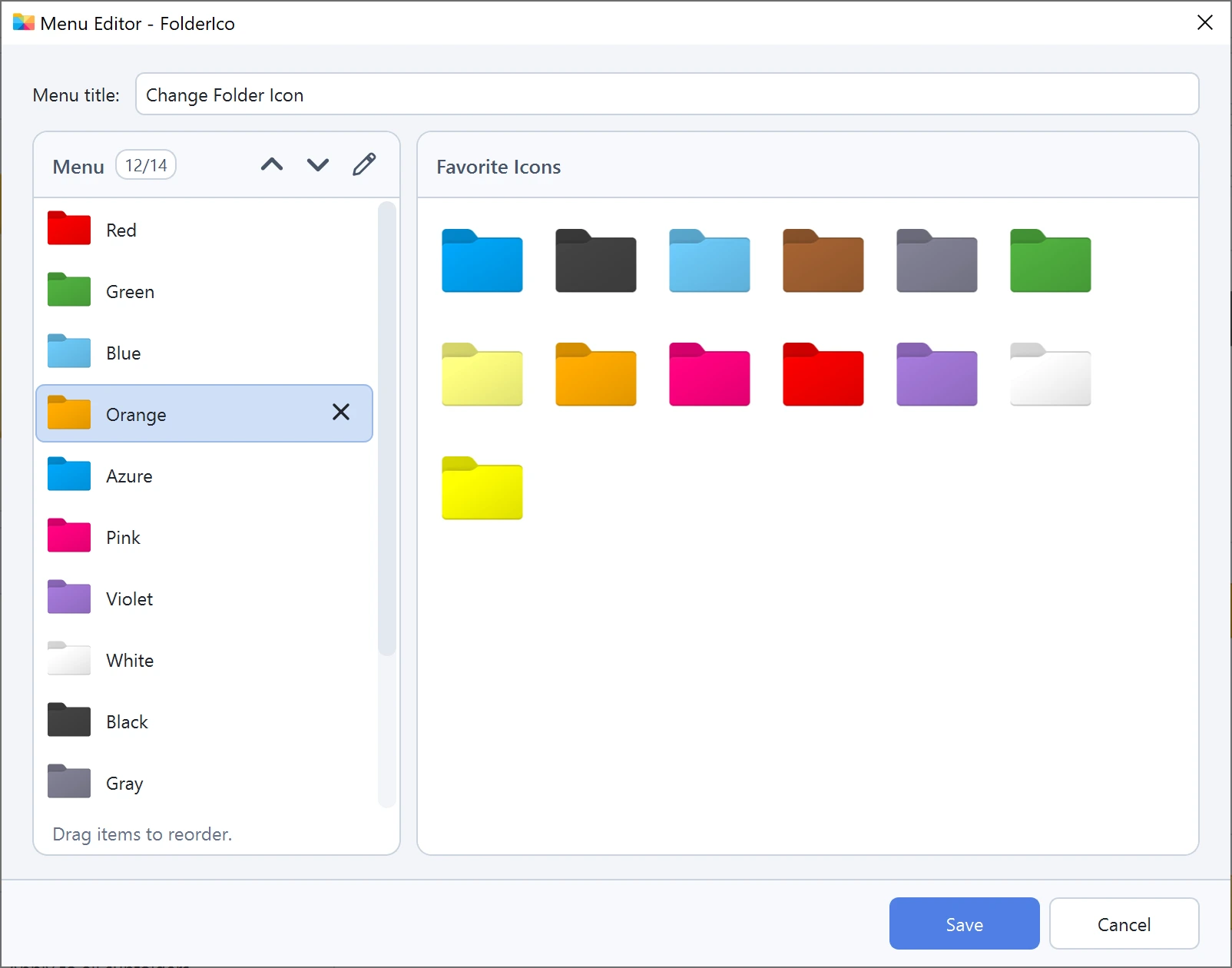
The Menu list on the left shows the current Explorer shortcuts. Favorite Icons on the right contains the icons available to add.
1. Prepare your Favorite Icons
The right panel in the Menu Editor shows only icons saved in Favorites. You can add a ready-made FolderIco icon or create and save a completely custom design.
Save a ready-made icon to Favorites
- Browse or search for the folder icon you want.
- Click its favorite heart, or right-click the icon and choose Add to Favorites.
- Repeat for every icon you want to make available in the context menu.
Save your own custom folder icon
- Open the icon editor and create your design.
- Choose your custom folder color and add a cover or sticker if needed.
- Click Save Icon to Favorites in the editor.
- The saved design will become available in the Favorite Icons panel of the Menu Editor.
This lets you place reusable custom designs in the Windows context menu, not just the ready-made icons included with FolderIco.
2. Open the Menu Editor
In the FolderIco menu bar, choose Tools -> Menu Editor.
The editor has three main areas:
| Area | What it controls |
|---|---|
| Menu title | The name of the FolderIco submenu shown in Windows Explorer. |
| Menu | The icon shortcuts currently shown in the submenu, in display order. |
| Favorite Icons | The favorite icons that are available to add to the menu. |
3. Add favorite icons to the menu
Use either of these methods to add an icon from Favorite Icons:
- Drag and drop: drag a favorite from the right panel to the exact position you want in the Menu list.
- Double-click: double-click a favorite to add it at the end of the Menu list.
The counter beside Menu shows the number of used slots, such as 12/14. Because of a Windows context-menu limitation, the menu can contain up to 14 icon shortcuts. The same favorite cannot be added twice.
4. Put the shortcuts in the right order
The order in the left panel is the order used in the Windows context menu. Put frequently used choices near the top so they are faster to reach.
- Drag an item up or down in the Menu list.
- Or select an item and use the up and down arrow buttons above the list.
A practical order is to place everyday actions first, followed by status or category icons that you use less often.
5. Rename a menu item
Menu labels should describe how you use an icon. For example, a red folder might be named Urgent instead of Red, and a green folder might be named Completed.
Select an item and click the pencil button, double-click its name, or right-click it and choose Rename. Enter the new label and confirm the change.
6. Remove shortcuts you no longer need
Click the remove button on a menu item. You can also select it and press Delete or Backspace, or right-click it and choose Remove.
Removing an item here only removes its shortcut from the Explorer menu. It does not delete the icon from Favorites or its original library.
7. Change the menu title
Edit the Menu title field if you want the submenu to use a different name. The default is Change Folder Icon. A short title such as Folder Icons also works well.
8. Save and check the result
- Review the menu title, item names, and order.
- Click Save.
- Right-click a folder in Windows Explorer and open the FolderIco submenu.
- Confirm that the shortcuts appear in the order you selected.
Example of a useful folder menu
Keep the list small and give every shortcut a clear purpose. For example:
- Urgent - a red folder for work that needs attention.
- In Progress - a blue or orange folder for active work.
- Completed - a green folder for finished items.
- Archive - a gray folder for material you rarely open.
- Favorite - a distinctive folder icon for frequently used locations.
Reusing a few consistent meanings makes the context menu easier to remember than filling all 14 slots with similar designs.
Tips for a faster context-menu workflow
- Use short names that remain easy to scan in Explorer.
- Put the most frequently used shortcuts at the top.
- Rename colors by purpose when that is how you organize folders.
- Remove rarely used entries instead of filling every available slot.
- Keep useful designs in Favorites even if they do not need a context-menu shortcut.
Frequently asked questions
Quick answers about the FolderIco Menu Editor.
Open FolderIco and choose Tools -> Menu Editor.
You can add only icons shown in Favorite Icons. Favorite a ready-made icon, or create a custom icon with your own colors, cover, or sticker and click Save Icon to Favorites in the icon editor.
Drag an icon from Favorite Icons into the Menu list, or double-click the favorite to add it at the end.
Yes. Create an icon with your preferred colors, cover, or sticker, click Save Icon to Favorites in the icon editor, and then add it from Favorite Icons in the Menu Editor.
This is a Windows context-menu limitation. The counter beside Menu shows how many of the 14 available slots are in use.
No. It only removes the shortcut from the Windows context menu. The icon remains available in Favorites.